A national register number is one of the most sensitive pieces of data a Belgian company handles. One payslip or customer list forwarded to the wrong address is a data breach you are obliged to report. With a DLP rule (Data Loss Prevention) you let Canvos catch that risk: the content of text, Office and PDF files is scanned, and the moment a national register number appears in a share, download, email, chat message or upload, Canvos steps in. Here is how to set it up. Note: the Governance Center is currently shown in Dutch; the captions below translate every step.
Step by stepSeven steps
1. Open the Governance Center 2. Choose the DLP rules tab 3. Add a rule 4. Name the rule 5. Set the condition and the action 6. Write the message and notify the administrator 7. Save and check the confirmation
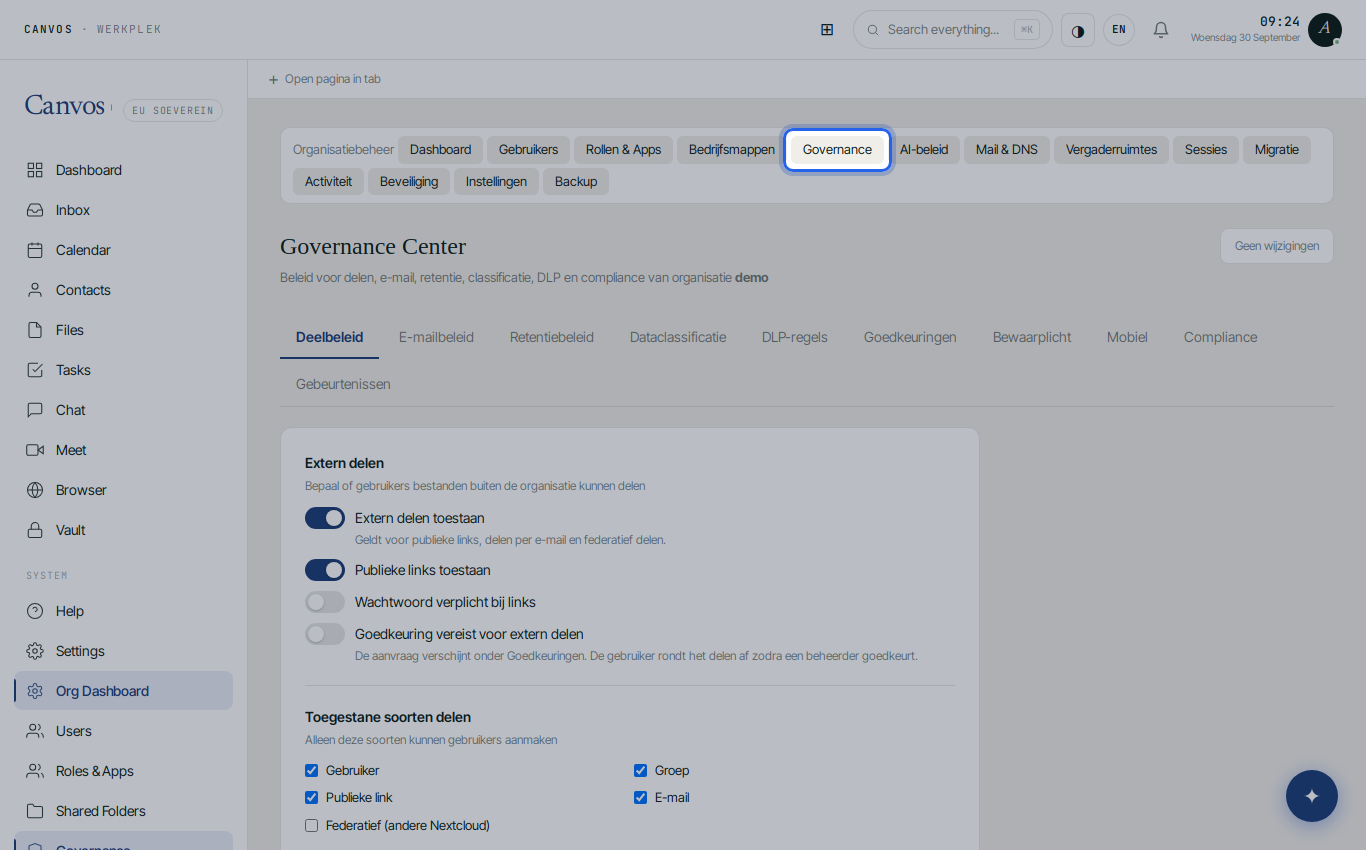
Open the Governance Center
Log in as an administrator of your organisation and click Governance in the sidebar. You land in the Governance Center, where all of your organisation's policy comes together: sharing, email, retention, classification, DLP and compliance.
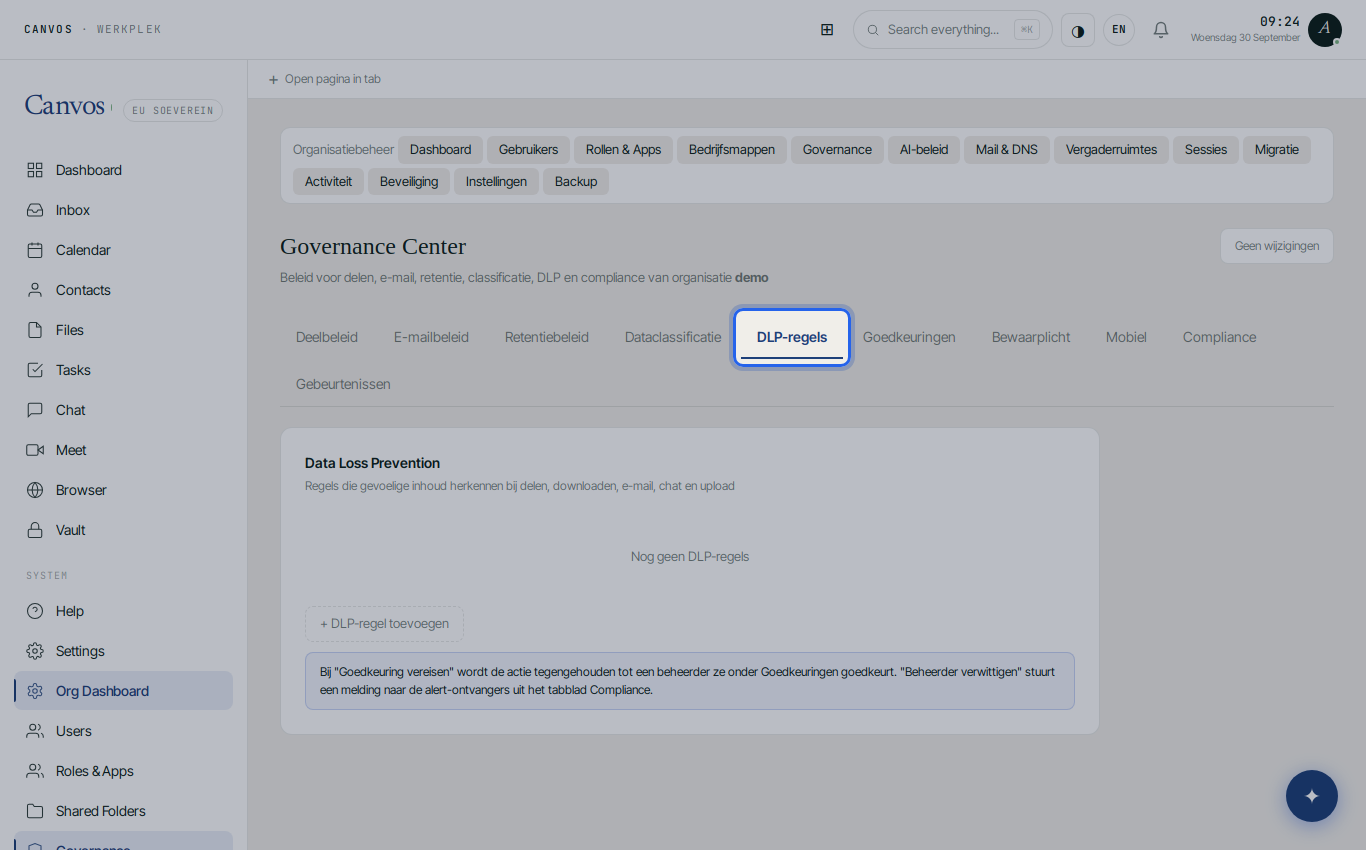
Choose the DLP rules tab
Click DLP-regels (DLP rules). In a new organisation this list is empty, which is normal. Every rule you create here applies immediately to all users of the organisation.
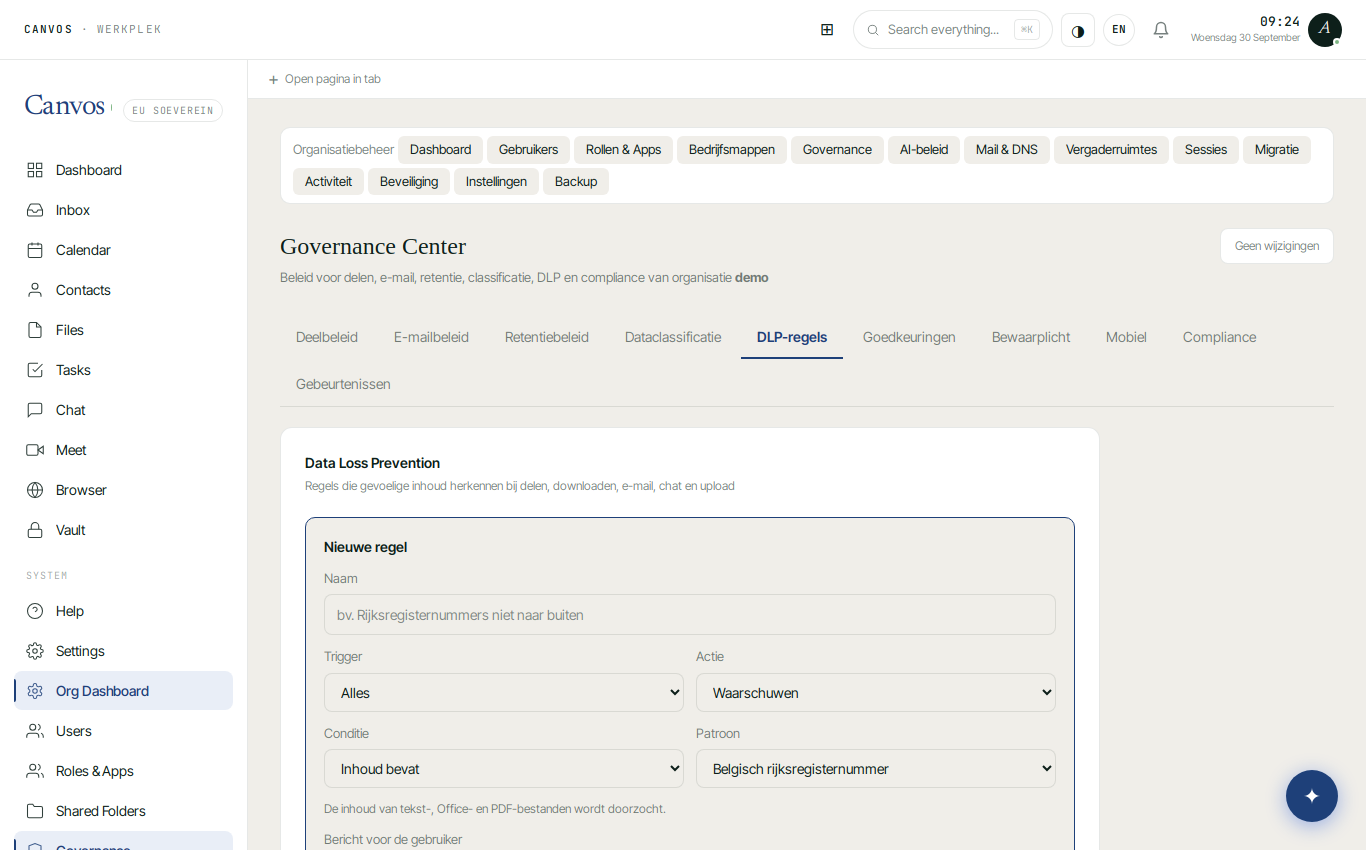
Add a rule
Click + DLP-regel toevoegen (add DLP rule). A form appears with four choices: what the rule reacts to, what it does, how it recognises the content, and which message the employee sees.
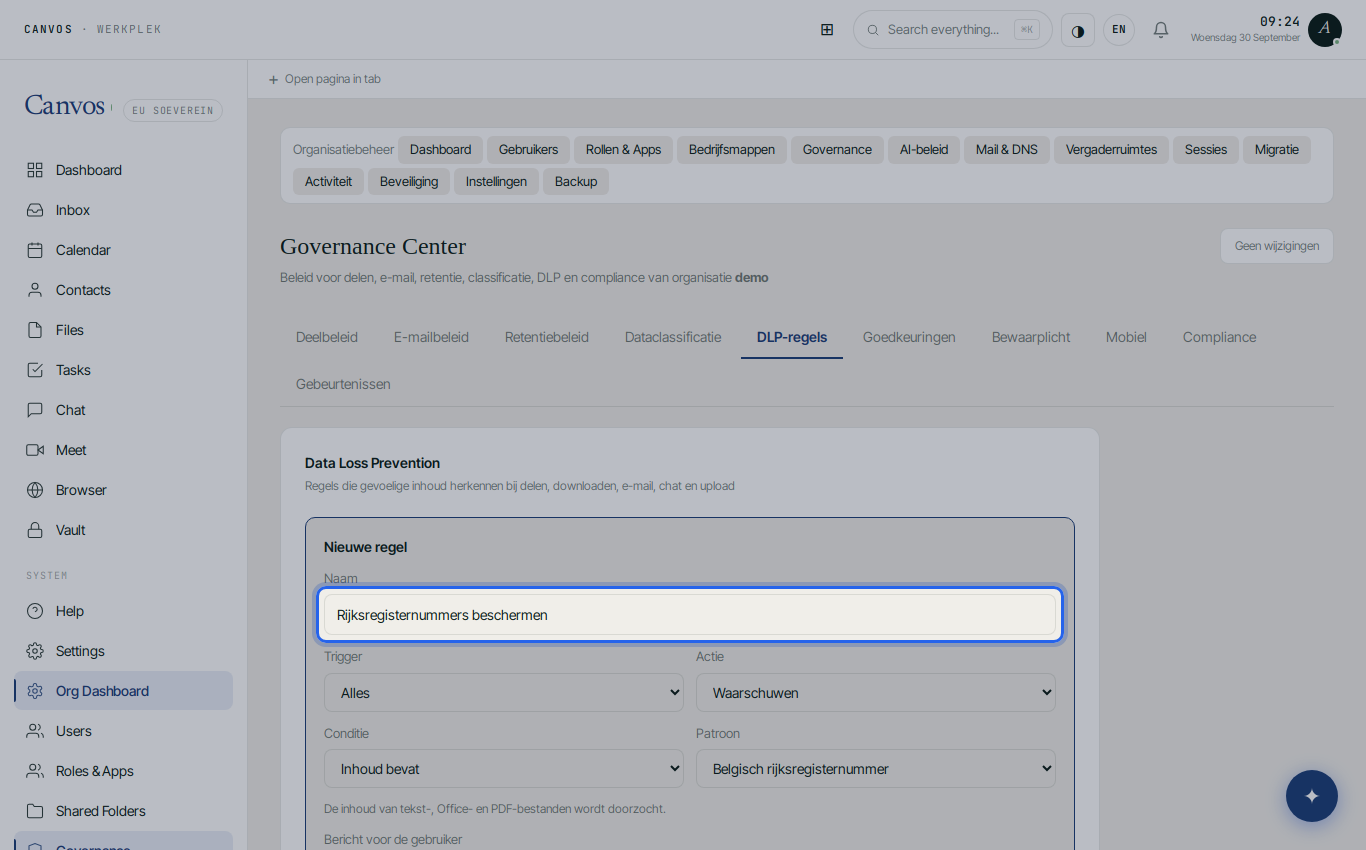
Name the rule
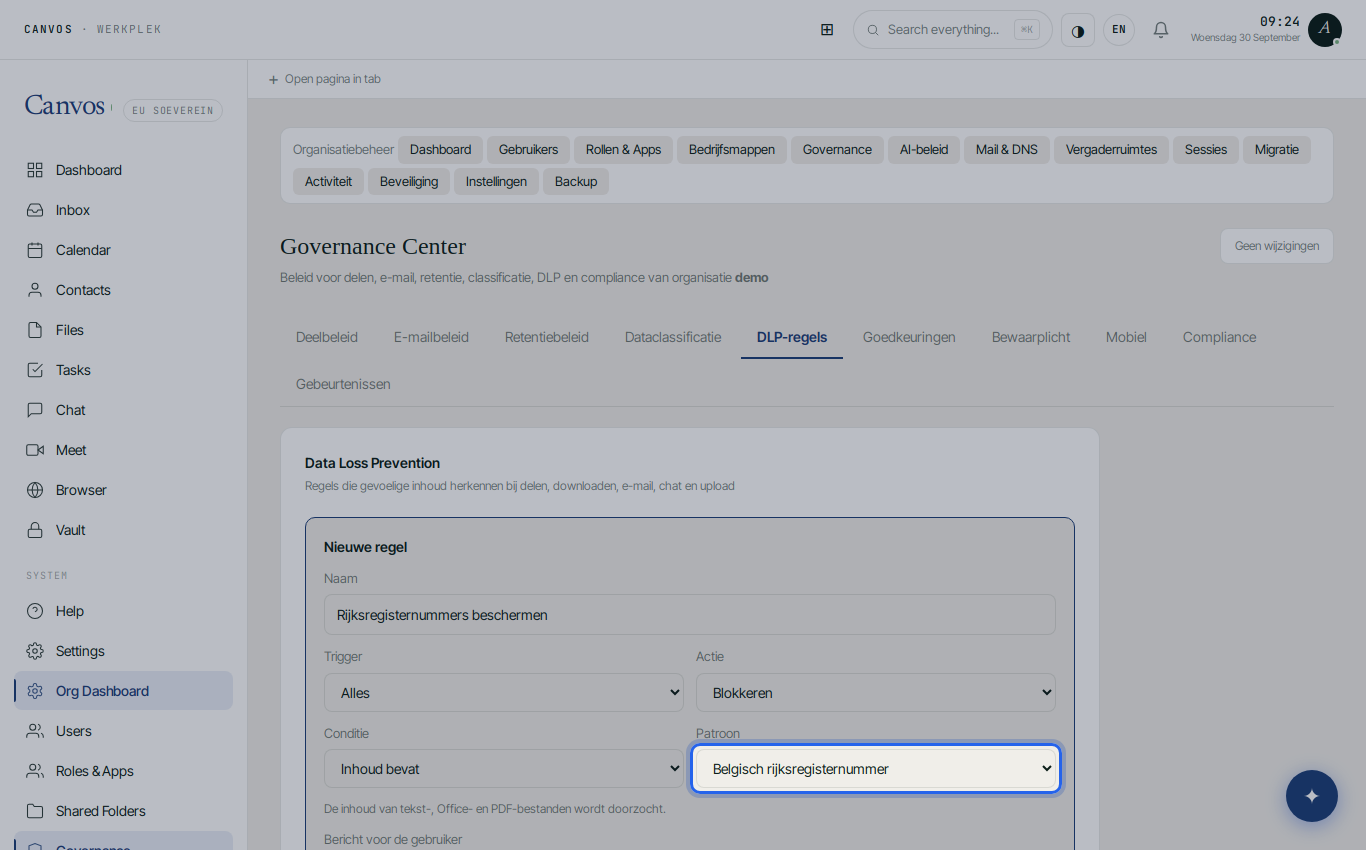
Pick a name everyone understands, for example Rijksregisternummers beschermen (protect national register numbers). That name later appears in the audit log and in notifications to administrators.
Set the condition and the action
Leave Reageert op (reacts to) on Alles (everything): the rule then covers sharing, download, email, chat and upload at once. Under Actie choose Blokkeren (block). Under Voorwaarde choose Inhoud bevat (content contains) and below it Belgisch rijksregisternummer. Canvos recognises the number by its structure and verifies the check digits, so a random string of digits does not trigger a false alarm.
Write the message and notify the administrator
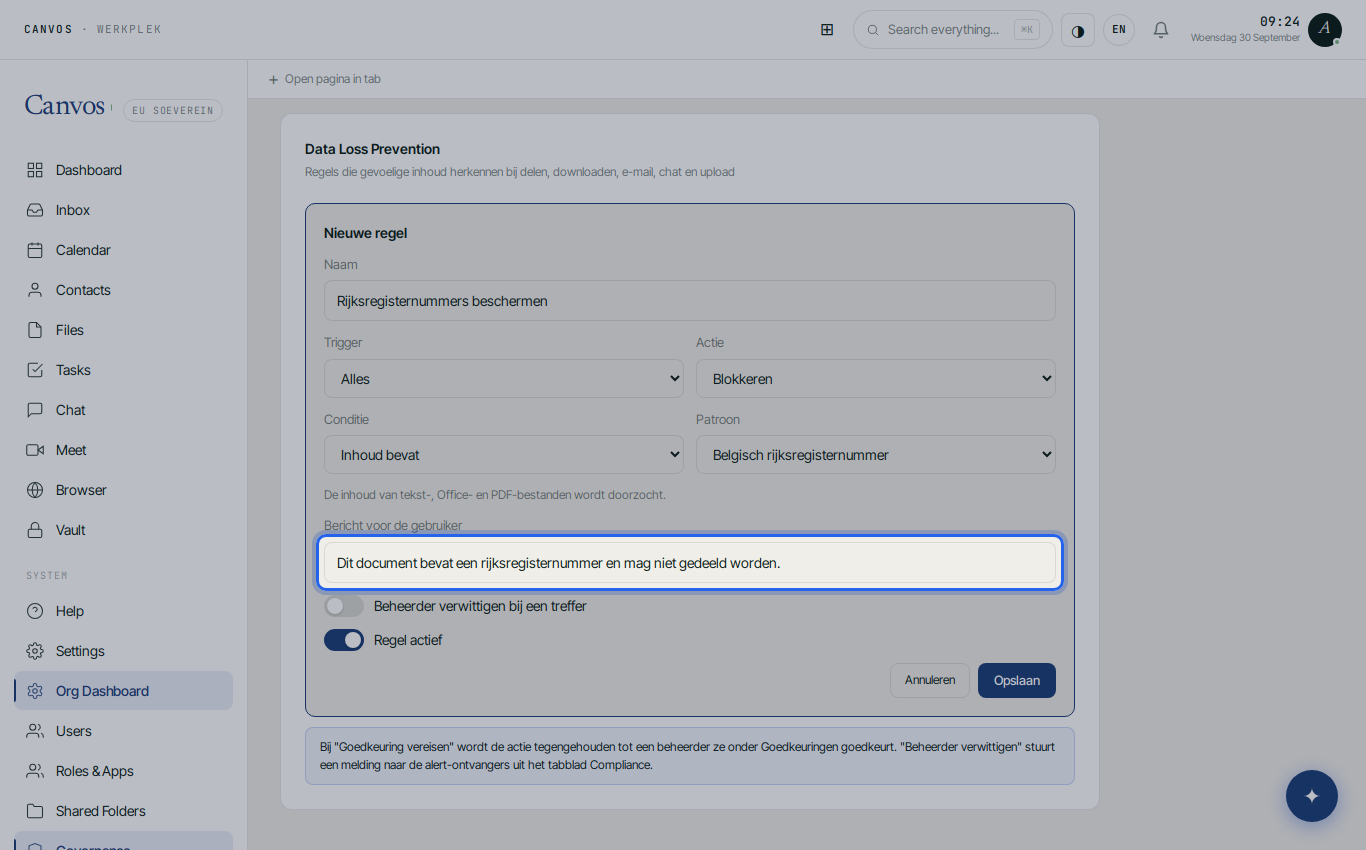
Type the message an employee will see when the rule fires, for example This document contains a national register number and must not be shared. Switch on Beheerder verwittigen bij een treffer (notify administrator on a hit): every hit is then sent to the alert recipients defined in the Compliance tab.
Save and check the confirmation
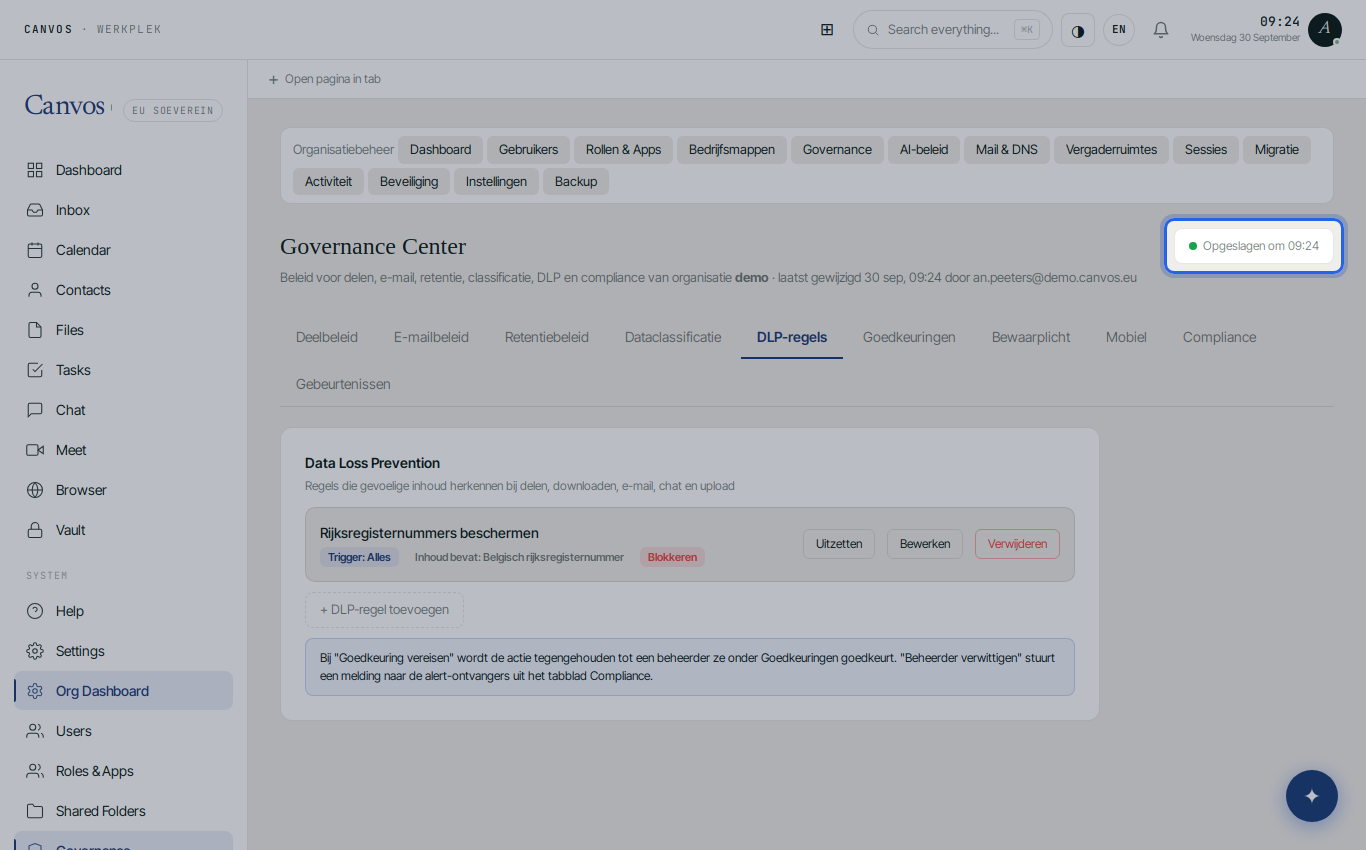
Click Opslaan (save). Canvos stores your organisation's policy automatically; top right you see Opgeslagen om (saved at) with a green dot. The rule is now active. Anyone trying to share, email or download a file containing a national register number sees your message, and the attempt is written to the audit log.
FAQFrequently asked questions
Does Canvos also recognise national register numbers in scans or photos?
No. The rule scans the text of text, Office and PDF files and of emails. A scanned image without a text layer is not read. Combine the rule with a classification label for folders where scans end up.
What exactly does the employee see?
The message you wrote in step 6, at the moment of sharing, downloading, emailing, chatting or uploading. With Block the action does not go through. With Warn the employee can continue after reading the message. With Require approval the action waits until an administrator allows it under Approvals.
Does the rule also apply to files that were already shared?
The rule checks actions from the moment it is active. Existing share links are not revoked retroactively. To review those, use the Sharing policy tab and the log under Events.
Can I create the same rule for IBAN numbers or card numbers?
Yes. Create a second rule and under Content contains choose IBAN account number or Payment card number. For your own patterns, such as customer numbers, choose Custom regular expression.