A policy that blocks is nice. Being able to prove what happened is what matters in an audit. Every action that touches your organisation's policy is written by Canvos to a log in which every event carries a sequence number and a hash linked to the previous one: the evidence chain. If a line is later changed or removed, the chain no longer adds up, and you see it. In this guide we follow a real incident: an employee tries to share a payslip containing a national register number publicly. Note: the Governance Center is currently shown in Dutch; the captions below translate every step.
Step by stepSeven steps from incident to evidence
1. The incident: a blocked share attempt 2. Open the Governance Center 3. Choose the Events tab 4. Filter on blocked actions 5. Read the evidence chain 6. Export the evidence 7. Verify the chain
The incident: a blocked share attempt
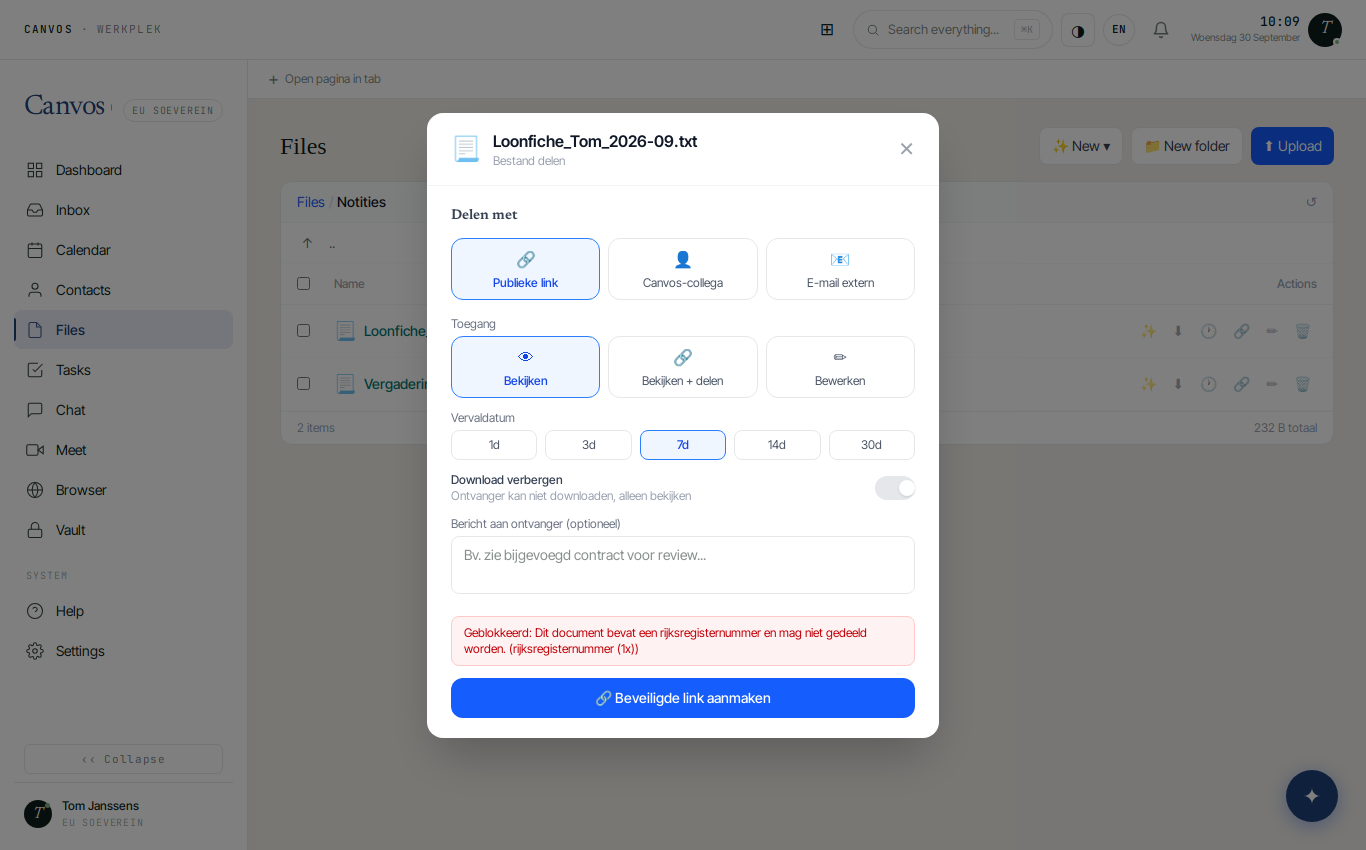
Tom tries to create a public link to a payslip in the Files module. The DLP rule from the national-register-number guide steps in: he sees in red Geblokkeerd: Dit document bevat een rijksregisternummer en mag niet gedeeld worden (blocked: this document contains a national register number and must not be shared), including what was found. The link is not created. Tom has nothing to do; you do, if you want to know what happened.
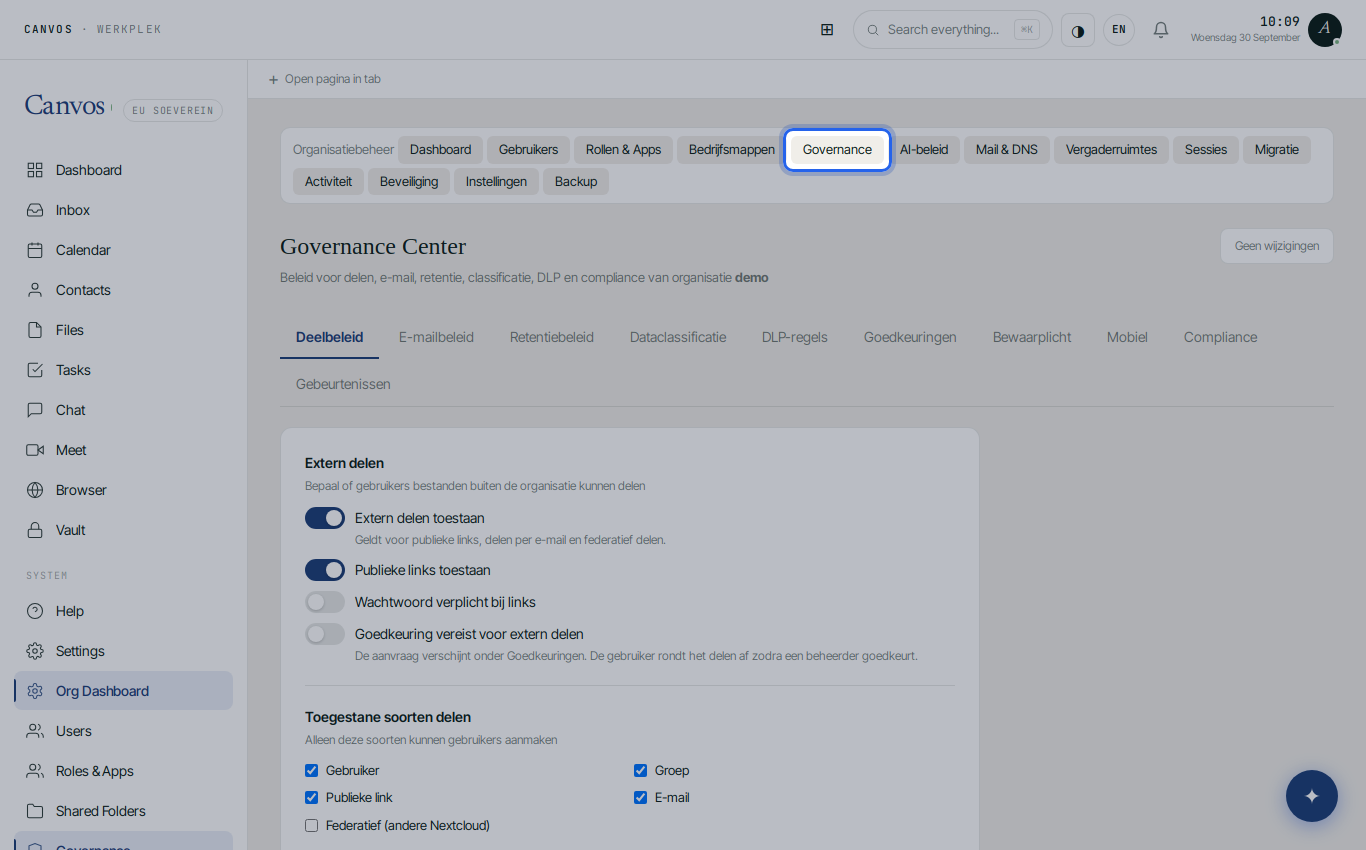
Open the Governance Center
Log in as an administrator and click Governance in the sidebar. If you switched on Notify administrator in step 6 of the DLP guide, you have also received a notification by now.
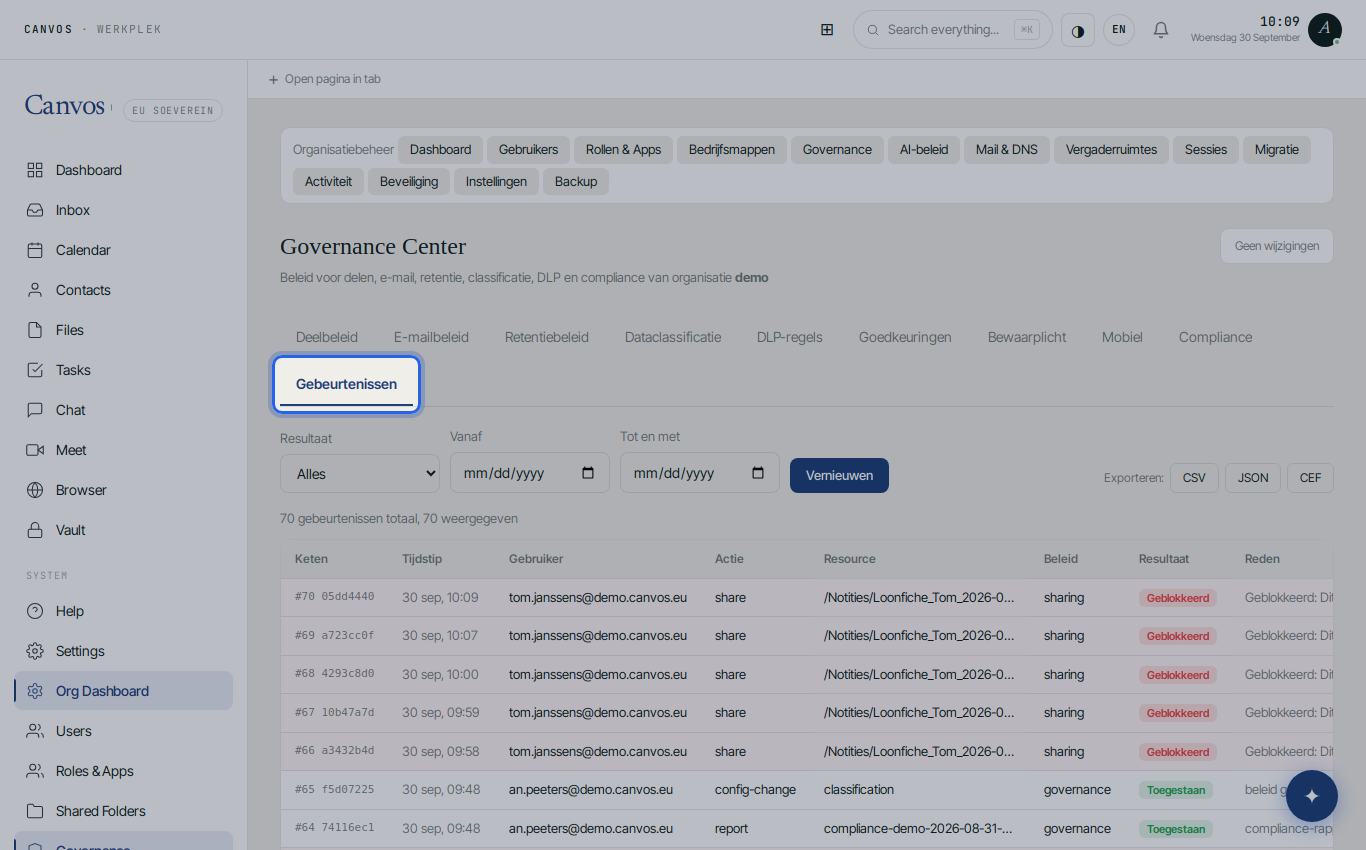
Choose the Events tab
Click Gebeurtenissen (events). Every action that touched policy is listed here, with time, user, action, file, policy, result and reason. Changes to the policy itself are included too, so you can always see who changed which rule and when.
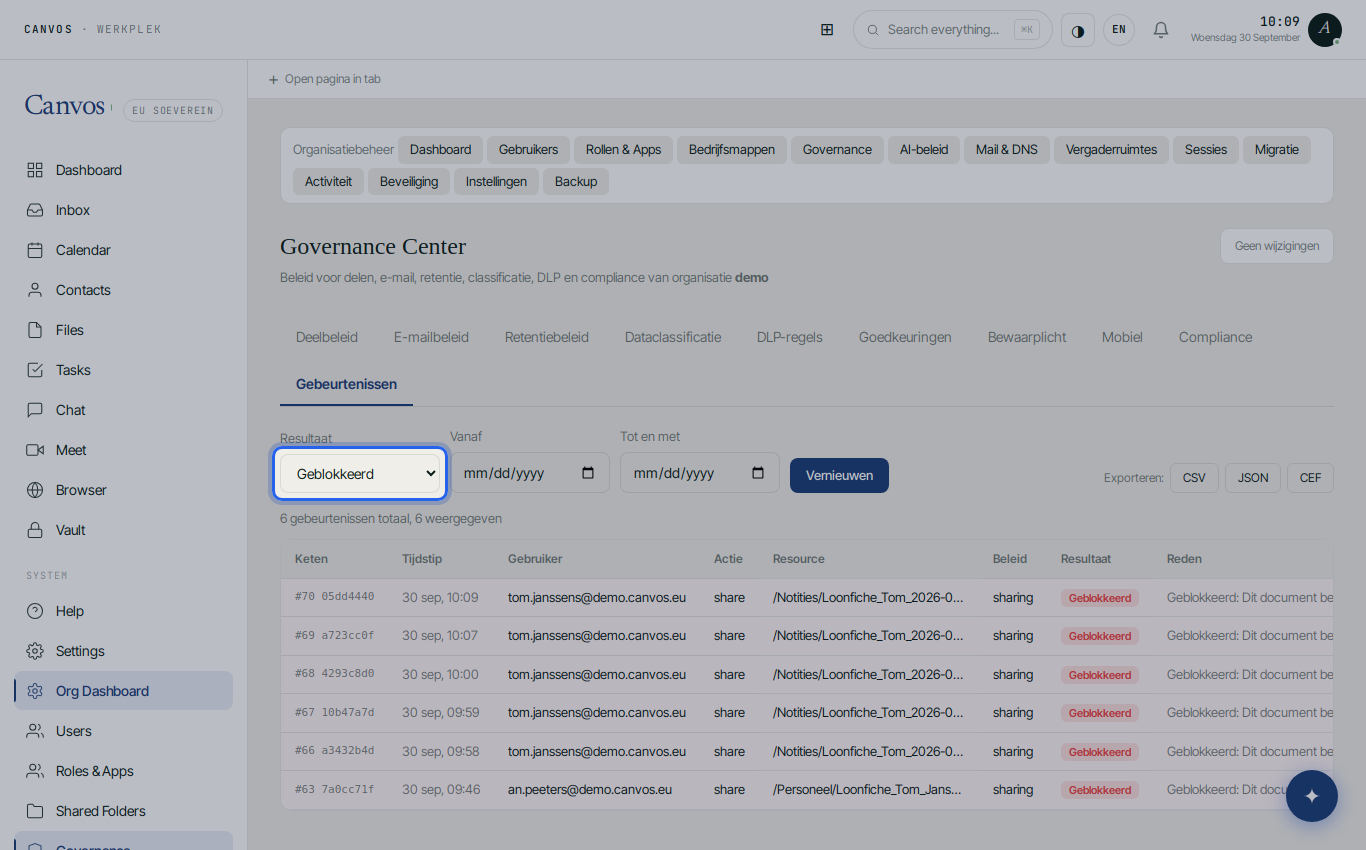
Filter on blocked actions
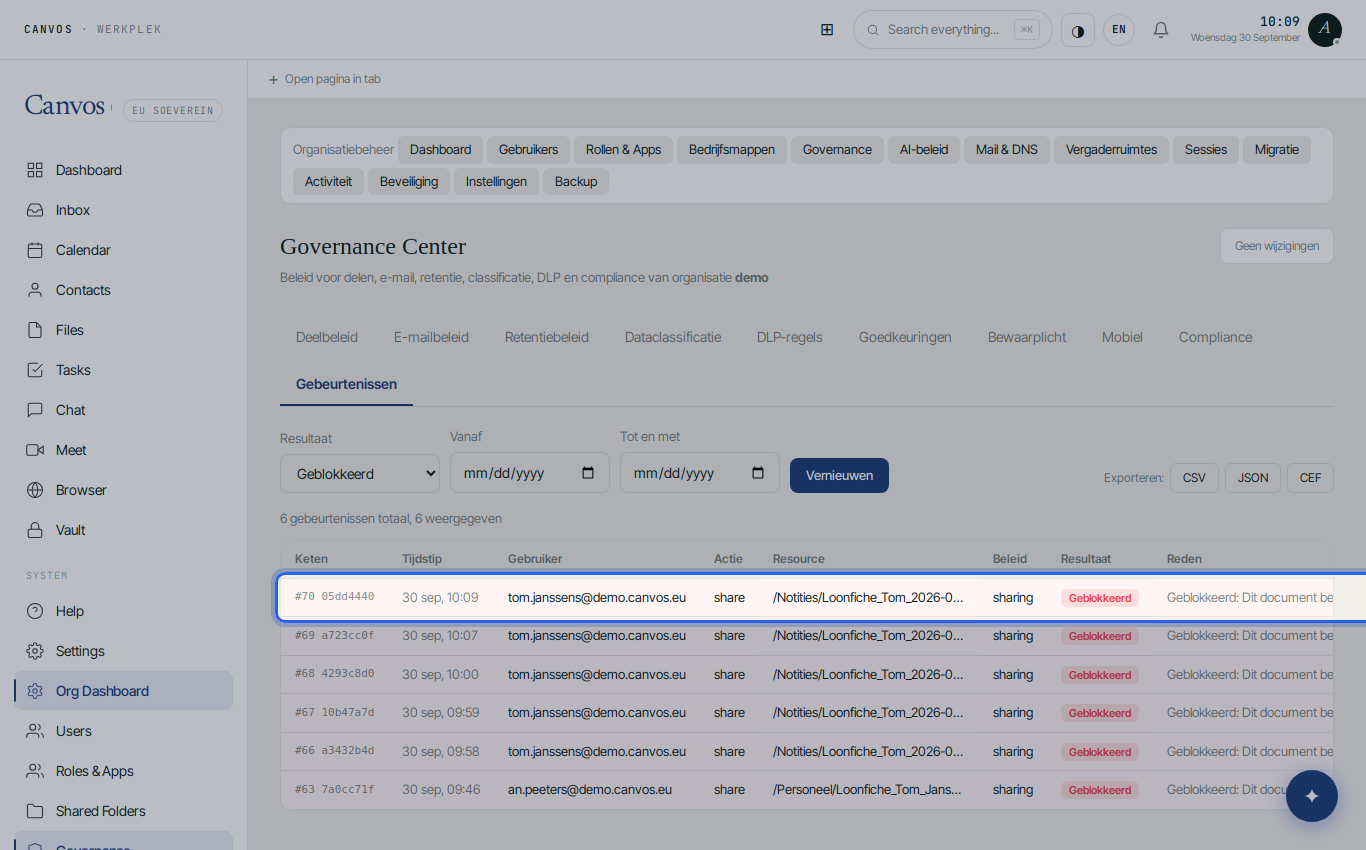
Under Resultaat (result) choose Geblokkeerd (blocked). The list now shows only the stopped actions: Tom's share attempt, with the file, the sharing policy and the full reason. With Vanaf (from) and Tot en met (up to) you narrow the period, for example to the month your DPO asked about.
Read the evidence chain
In the Keten (chain) column every event shows a sequence number and the start of its hash, for example #66 a3432b4d. That hash is computed over the event's content and the hash of the previous event. One changed character in an older line invalidates every later hash. Every day Canvos also records a signed anchor point.
Export the evidence
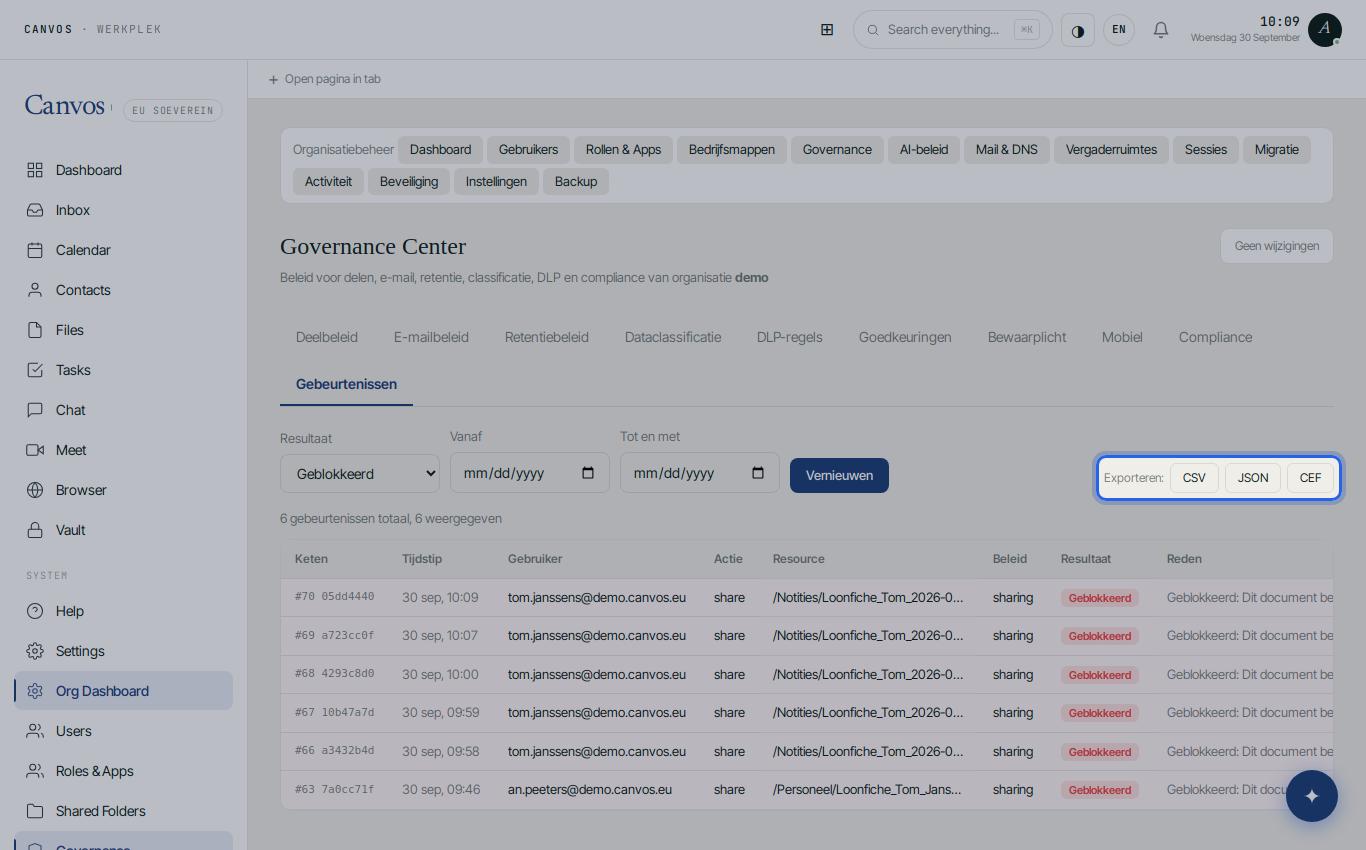
Click CSV, JSON or CEF at the top right. CSV suits your accountant or DPO, JSON your own analysis, CEF a SIEM. The export contains the filtered events with their hashes, so the recipient can verify the chain independently.
Verify the chain
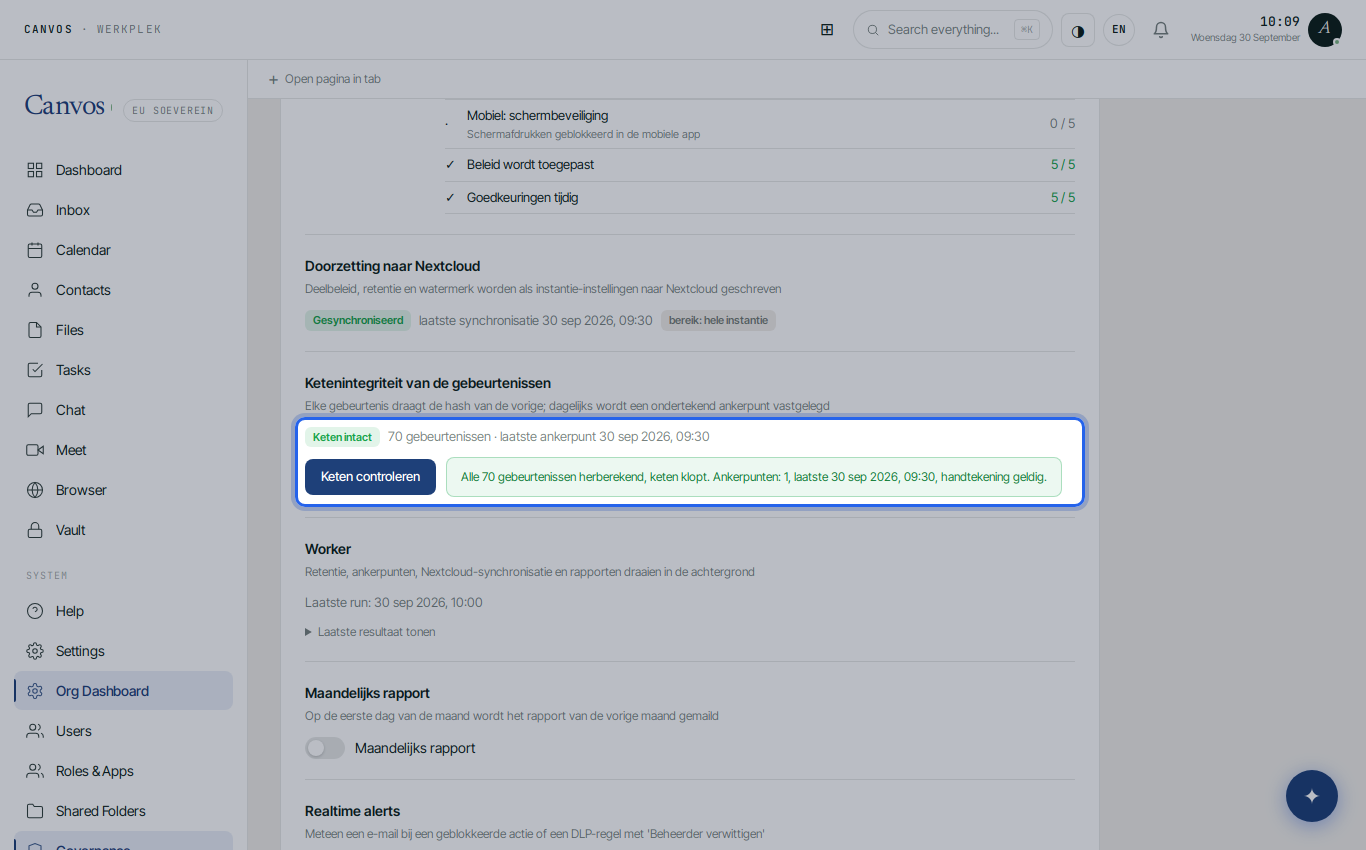
Go to the Compliance tab, section Ketenintegriteit van de gebeurtenissen (chain integrity of the events), and click Keten controleren (verify chain). Canvos recomputes every hash and compares the anchors with their signature. The result states how many events were checked and whether the chain is intact. That is the sentence you show an auditor.
FAQFrequently asked questions
What exactly is in the log?
Every action that was checked against policy: sharing, download, email, chat and upload, with the result (allowed, warned, blocked), plus every change to the policy itself and system events such as reports and anchor points.
How long is the log kept?
You decide in the Retention policy with Keep audit log. Two years is a sensible minimum; zero means keep forever. Pruned events are replaced by a checkpoint, so the chain stays intact.
What does it mean if the chain is broken?
That an event no longer matches the hash computed over it: the line was changed or something is missing. Canvos shows at which sequence number that happened. Contact your administrator or Canvos.
Can an administrator delete events?
Not without it becoming visible. The log is append-only, and the chain and the signed anchor points make any later intervention demonstrable.