Sharing a quote or contract with a client should be easy. But a link that works forever, without a password, is a risk nobody keeps track of. Instead of asking every employee to get it right, you set the policy once in Canvos. From then on there is no other way: every public link gets a password, expires after a chosen number of days, and downloaded PDFs carry a watermark with the name of whoever opened them. Here is how. Note: the Governance Center is currently shown in Dutch; the captions below translate every step.
Step by stepSeven steps
1. Open the Governance Center 2. Choose the Sharing policy tab 3. Require a password on links 4. Let links expire automatically 5. Put a watermark on downloads 6. Block additional file types 7. Check the confirmation
Open the Governance Center
Log in as an administrator of your organisation and click Governance in the sidebar.
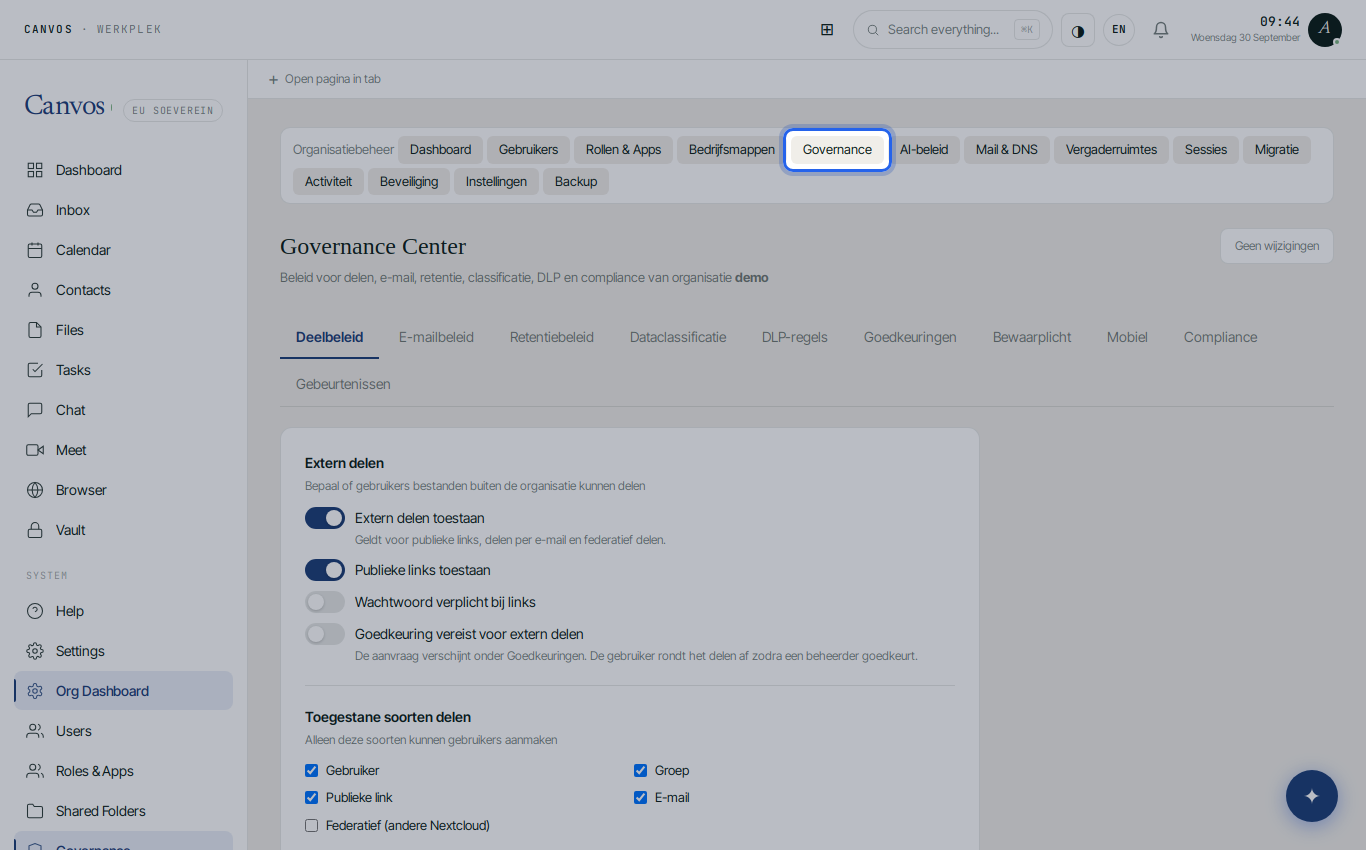
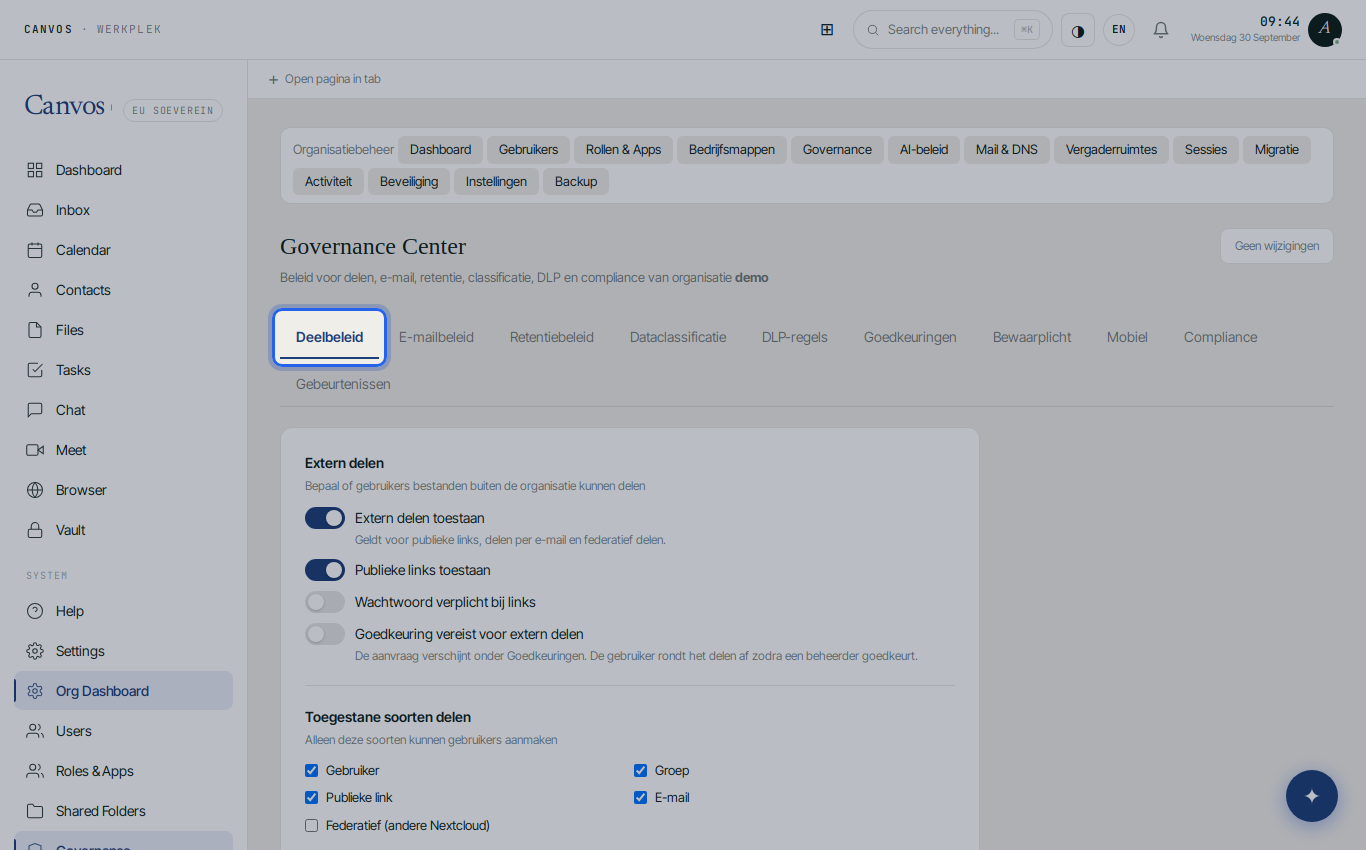
Choose the Sharing policy tab
Click Deelbeleid (sharing policy). At a glance you see what is allowed today: external sharing, public links, passwords, approval, and which kinds of shares your employees may create.
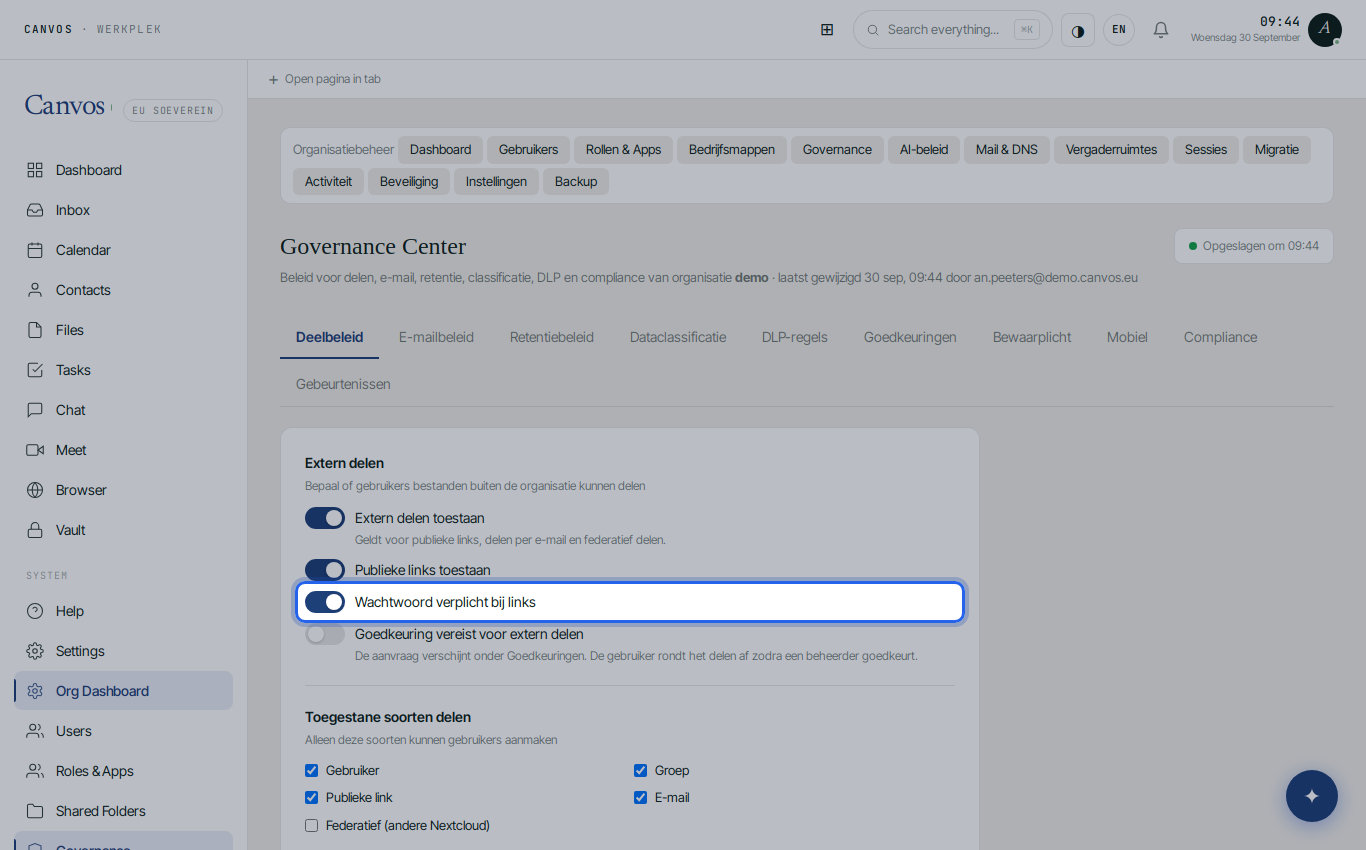
Require a password on links
Switch on Wachtwoord verplicht bij links (password required on links). From now on an employee cannot create a public link without a password. Leave Extern delen toestaan (allow external sharing) and Publieke links toestaan (allow public links) on: the goal is safe sharing, not forbidding it.
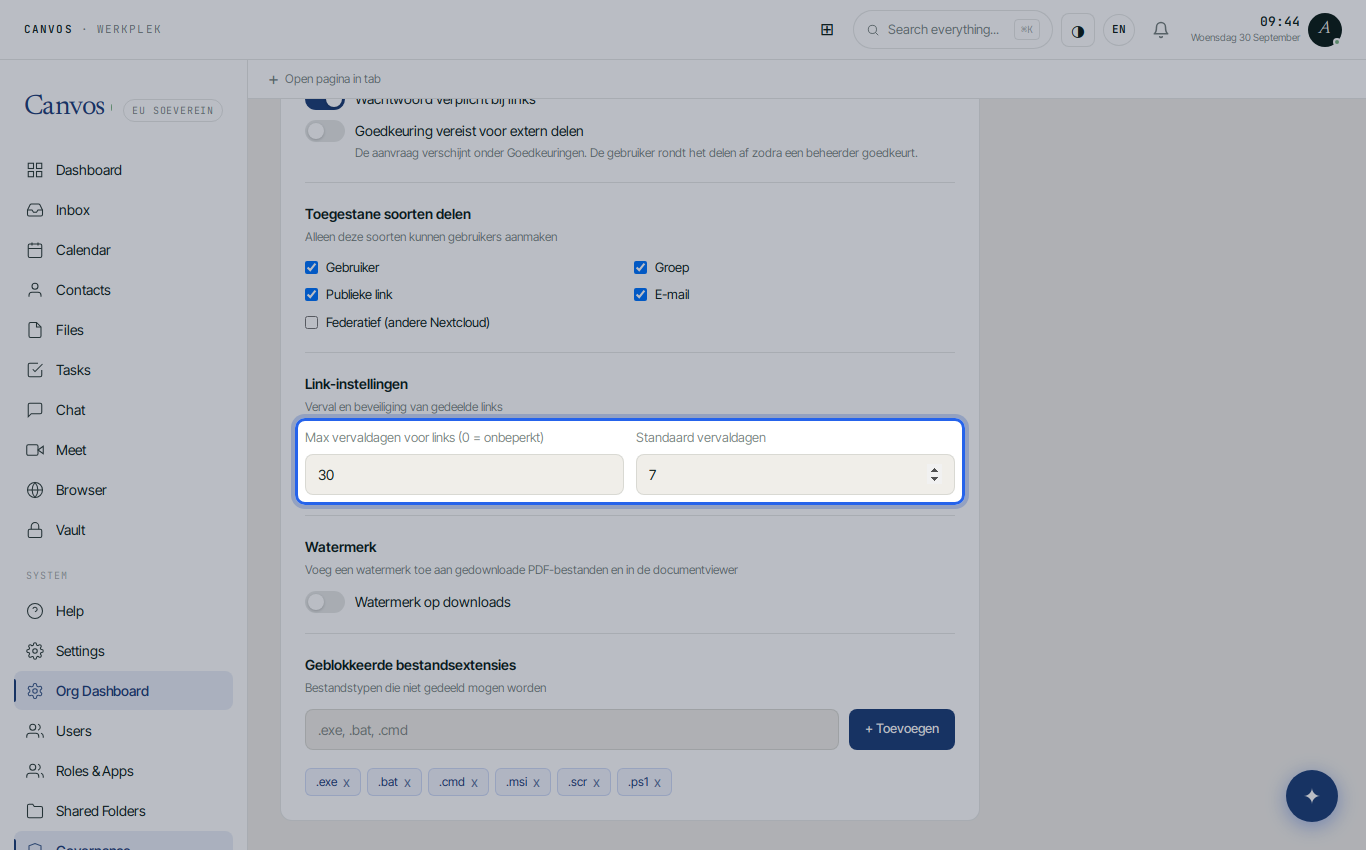
Let links expire automatically
Scroll to Link-instellingen (link settings). Set Max vervaldagen voor links (maximum expiry days) to 30 and Standaard vervaldagen (default expiry days) to 7. A new link then expires after a week by default; whoever needs longer can choose up to thirty days, but never unlimited.
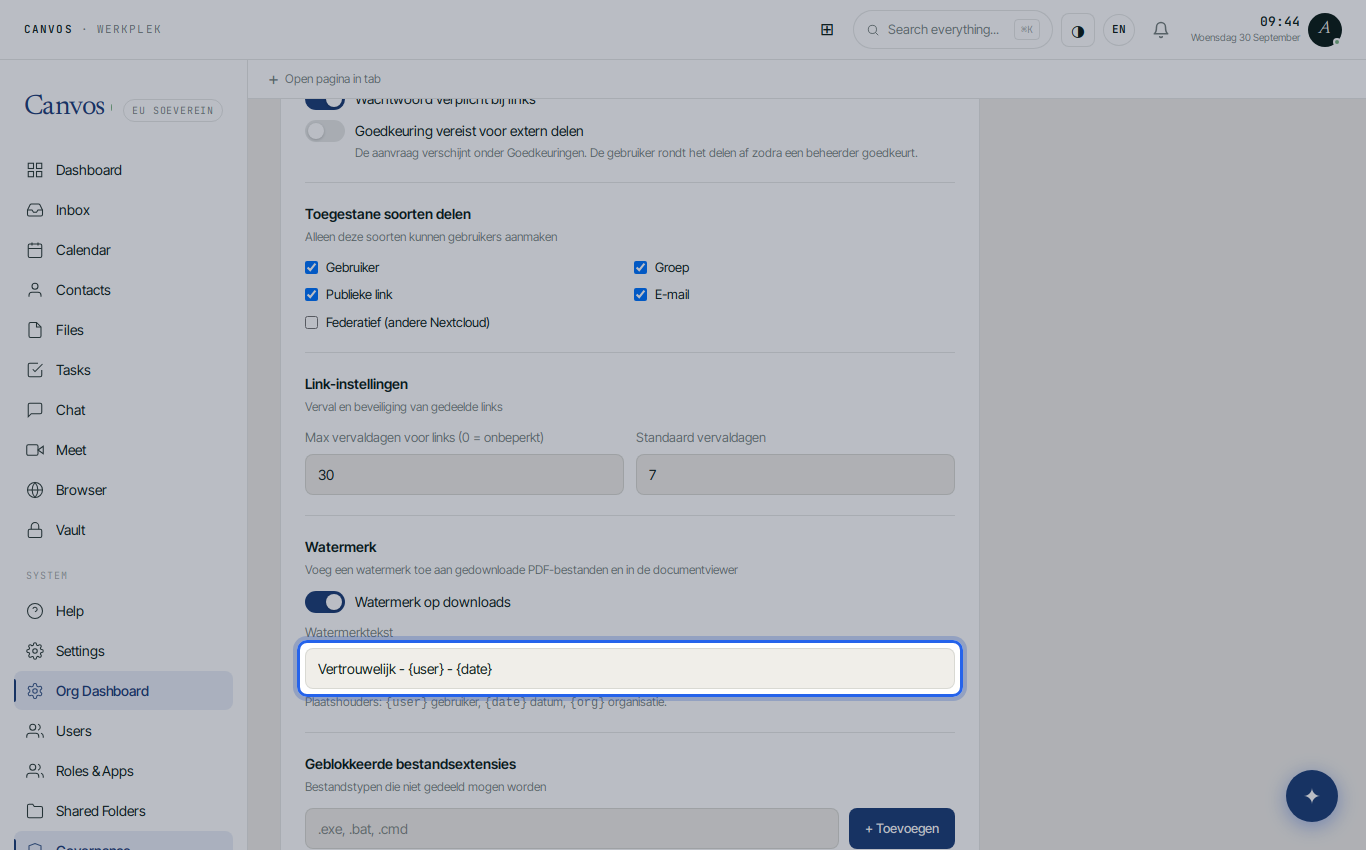
Put a watermark on downloads
Switch on Watermerk op downloads (watermark on downloads) and enter the text, for example Vertrouwelijk - {user} - {date}. Canvos fills the placeholders with the name of the person downloading and the date, and prints that as a watermark in downloaded PDFs and in the document viewer. A document that still ends up outside is always traceable.
Block additional file types
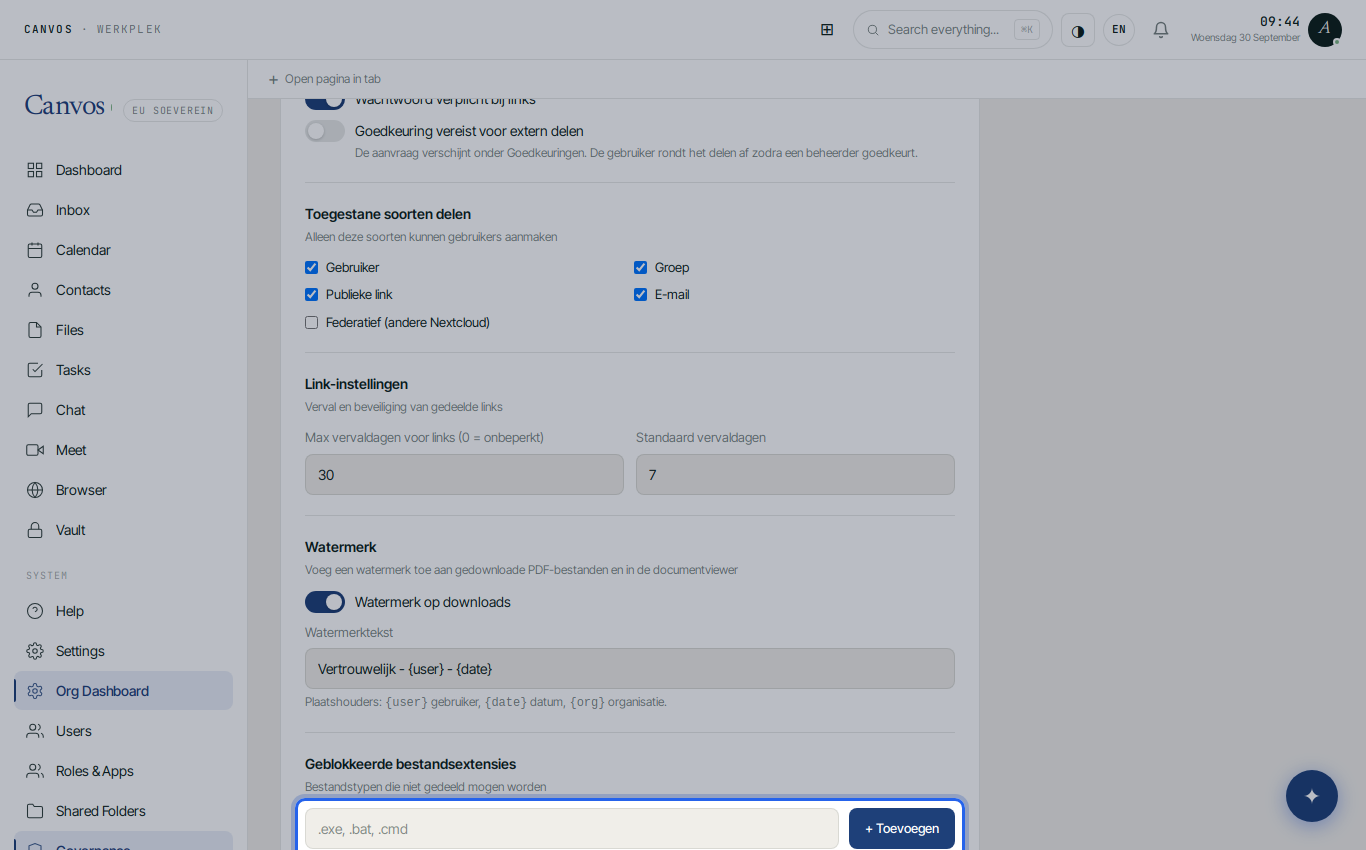
Under Geblokkeerde bestandsextensies (blocked file extensions) executable files are already blocked by default: .exe, .bat, .cmd, .msi, .scr and .ps1. To add a type, such as scripts, type the extension, for example .vbs, and click + Toevoegen (add). Such files can then no longer be shared, not even internally.
Check the confirmation
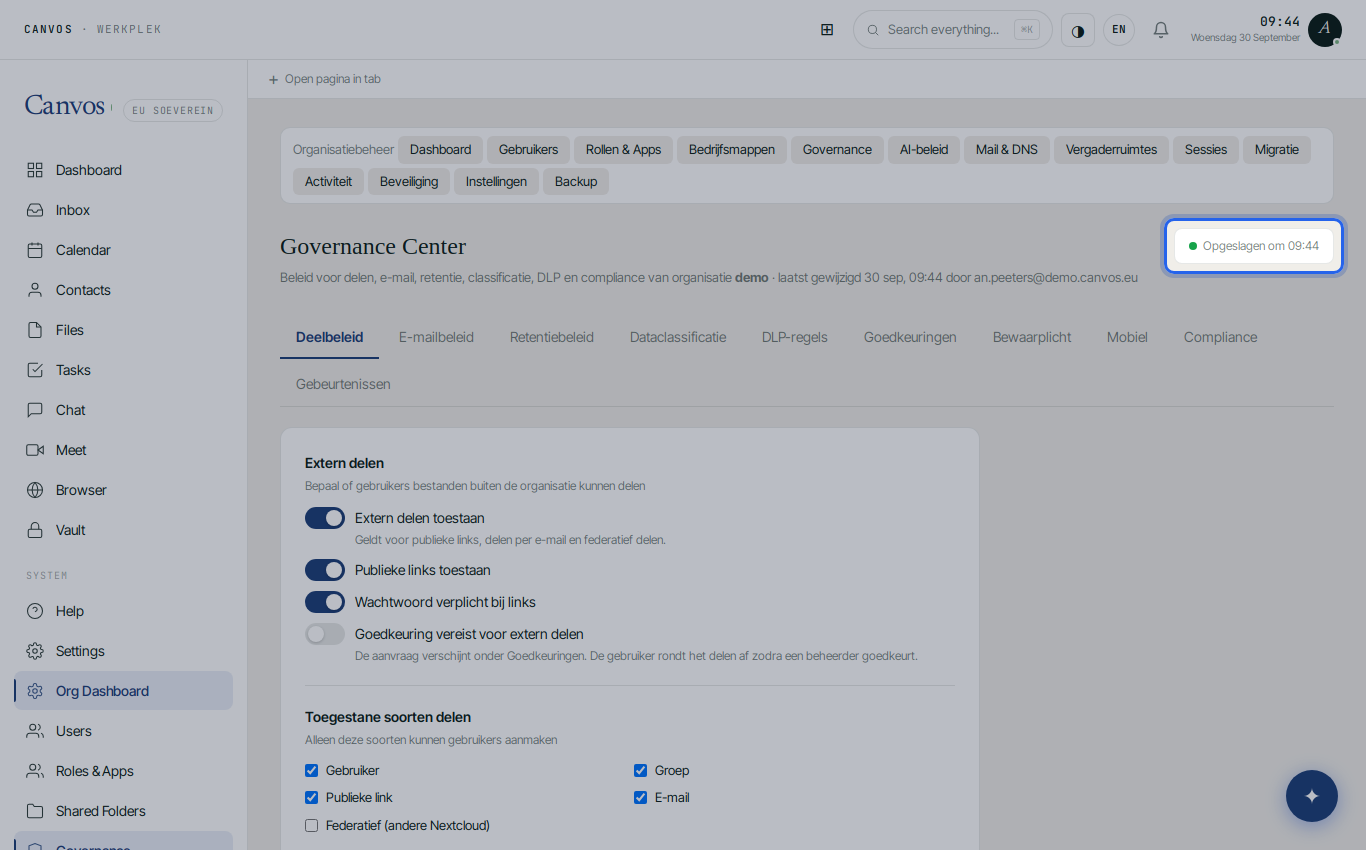
Canvos stores the policy automatically: top right you see Opgeslagen om (saved at) with a green dot. The policy applies immediately to everyone in the organisation, including links employees create from now on in the Canvos files module.
FAQFrequently asked questions
Does the password also apply to links that already existed?
No. The policy applies to links created from now on. Existing links stay as they are until they expire or an employee removes them. The Events tab shows which links exist.
Can an employee bypass the expiry date?
No. The maximum period you set is a hard limit. An employee can choose a shorter period, never a longer one.
Where exactly does the watermark appear?
In downloaded PDF files and in the Canvos document viewer, with the user's name and the date you included in the text. For Office files this happens when opening them in the viewer.
Does this policy also apply when someone works directly in Nextcloud?
Canvos pushes the password and expiry checks to the Nextcloud backend, so they apply there too. The watermark and file extensions are checked in Canvos itself.