A workplace in the browser is handy, but many people simply want their files in a folder on their computer: open them in the program they know, even without internet. That is what the Canvos desktop client is for. You choose a folder and it stays identical to your workplace: what you save locally is in Canvos and on every other device moments later; what a colleague shares appears in your folder by itself. The server is already filled in, you log in through your browser, and you are done.
Step by stepConnected in four steps
1. Download the client 2. Start the client: the server is already filled in 3. Log in through your browser 4. Choose your folder and you are done
Download the client
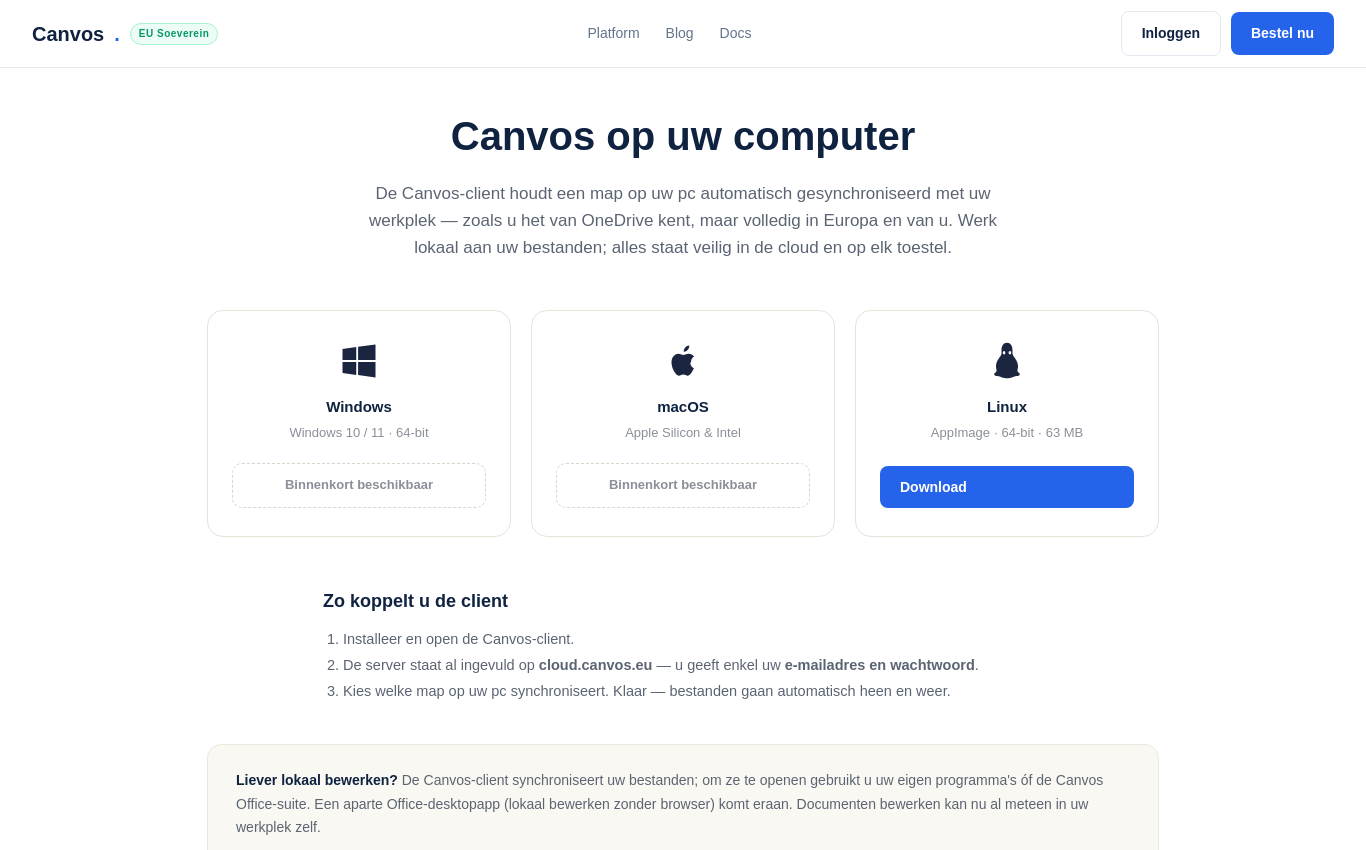
Go to canvos.eu/downloads and pick your operating system. For Linux it is an AppImage: make the file executable (right-click, Properties, or chmod +x) and start it. The Windows and macOS installers appear as soon as they are signed.
Start the client: the server is already filled in
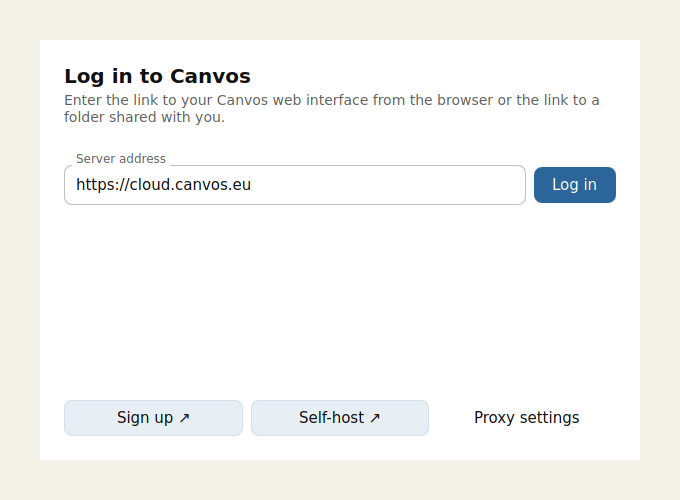
On first start the client asks where your workplace is. The address https://cloud.canvos.eu is already filled in, so you type nothing. Click Log in. If you have your own Canvos domain, your administrator will give it to you.
Log in through your browser
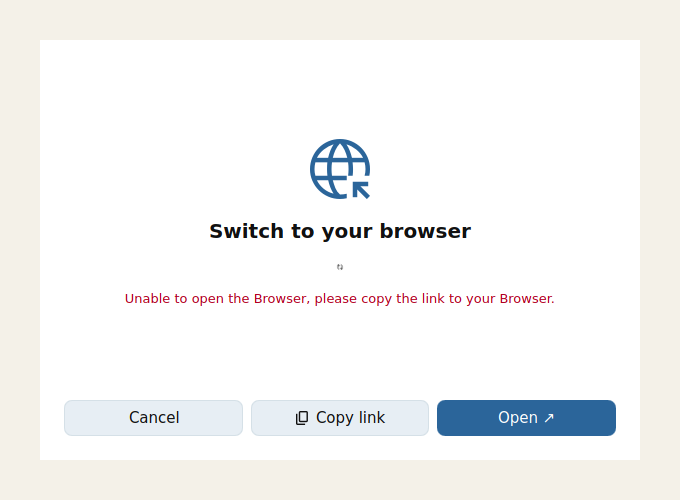
The client opens your browser on the Canvos login page, the same one as for the workplace, with the same username and password (and 2FA if enabled). If the browser does not open by itself, click Copy link and paste the link into your browser. After logging in you confirm that the client gets access, and switch back to the client.
Choose your folder and you are done
The client asks which folder on your computer synchronises and whether you want everything or only what you choose. Confirm, and the first synchronisation starts. From now on you see the Canvos icon in your system tray: green means everything is in sync, blue means working. Files you change locally are in Canvos within seconds; files colleagues share appear in your folder by themselves.
FAQFrequently asked questions
Does the client work without internet?
Yes. You simply keep working in your local folder. As soon as there is a connection again, the changes are synchronised. If a colleague edited the same file meanwhile, the client keeps both versions and tells you.
Do I have to synchronise everything?
No. You choose which folders come to your PC. Large folders you rarely need stay in the cloud; you can always add them later.
Does my organisation's policy also apply through the client?
Yes. Sharing, labels and DLP rules apply to the file, not to where you open it. What you may not share through the workplace, you may not share through the client either.
When do Windows and macOS arrive?
The Windows and macOS versions are ready and are published as soon as they are signed with a code-signing certificate, so your system shows no warning. The download page is updated automatically.