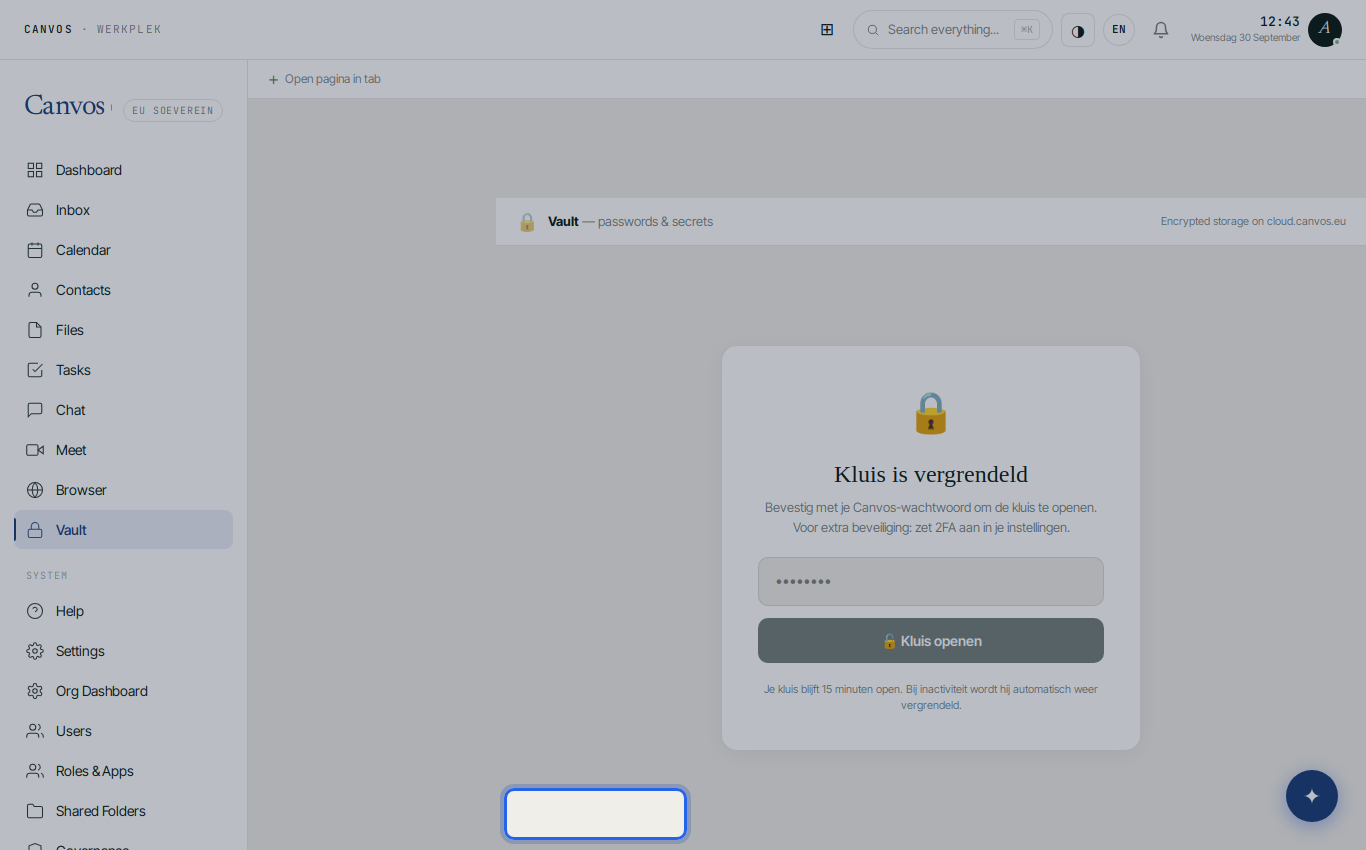
Every company has dozens of logins that do not belong to one person: a supplier's client portal, the webshop, social media, the banking application for accounting. Often they sit in a spreadsheet, a chat conversation or on a note. The vault in Canvos exists to stop that: items with name, username, password, website and notes, stored encrypted on your own server, opened with your Canvos password, and locked again by itself after a quarter of an hour without activity.
Step by stepFive steps
1. Open the vault 2. A new item 3. Save 4. Organise with folders 5. Lock when you leave
Open the vault
Click Vault in the sidebar. The vault is locked; confirm with your Canvos password and click Kluis openen (open vault). For extra security switch on 2FA in your settings: the vault is then only reachable with your authenticator.
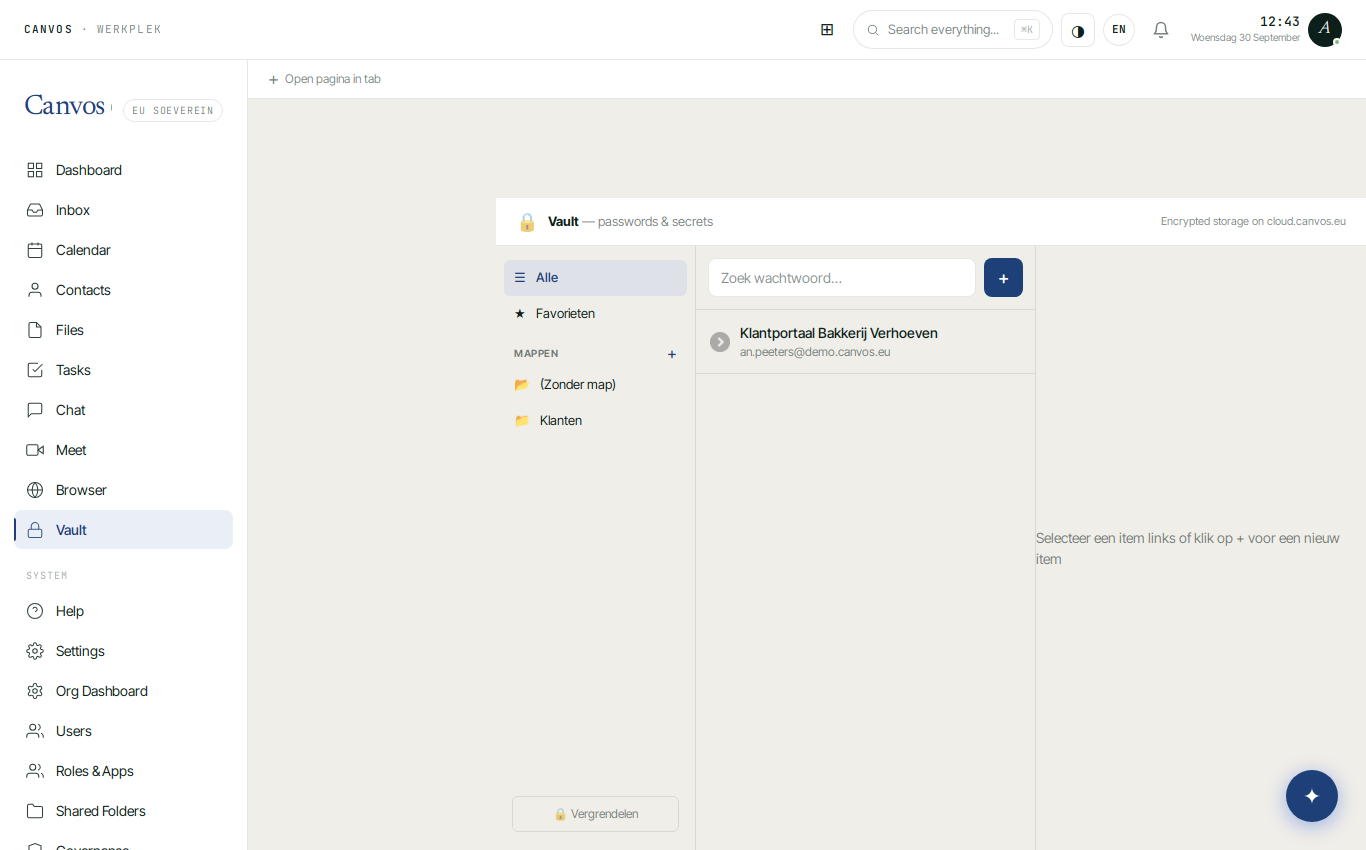
A new item
Click + next to the search field. Give the item a name, the username and the website. Under Wachtwoord (password) click ⚡ to generate a strong password, or type an existing one. 🙈 shows or hides it. Add notes, for example when the password must be renewed.
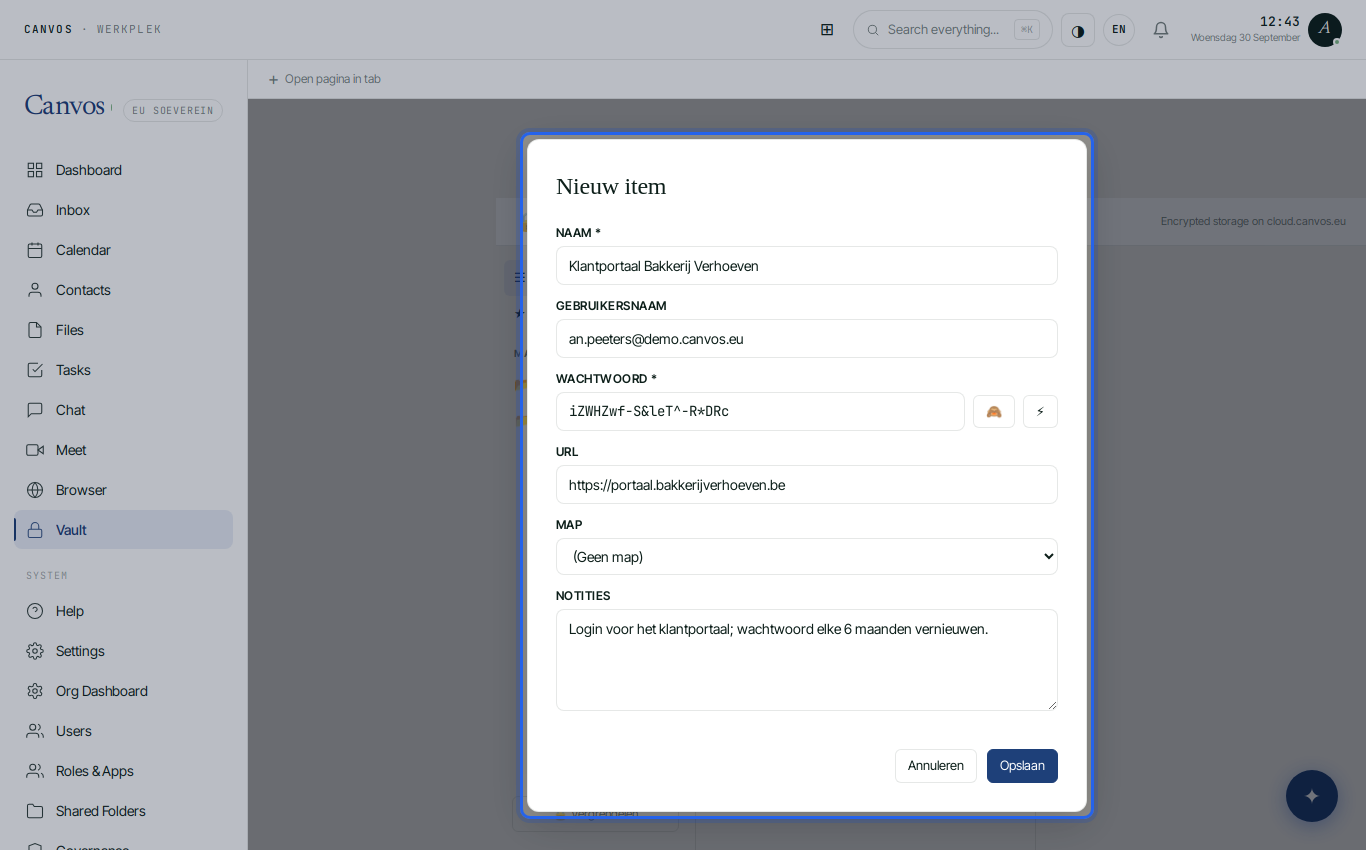
Save
Click Opslaan (save). The item is in your vault. Click it to view it, copy the password or edit it. Mark what you need often as a favourite.
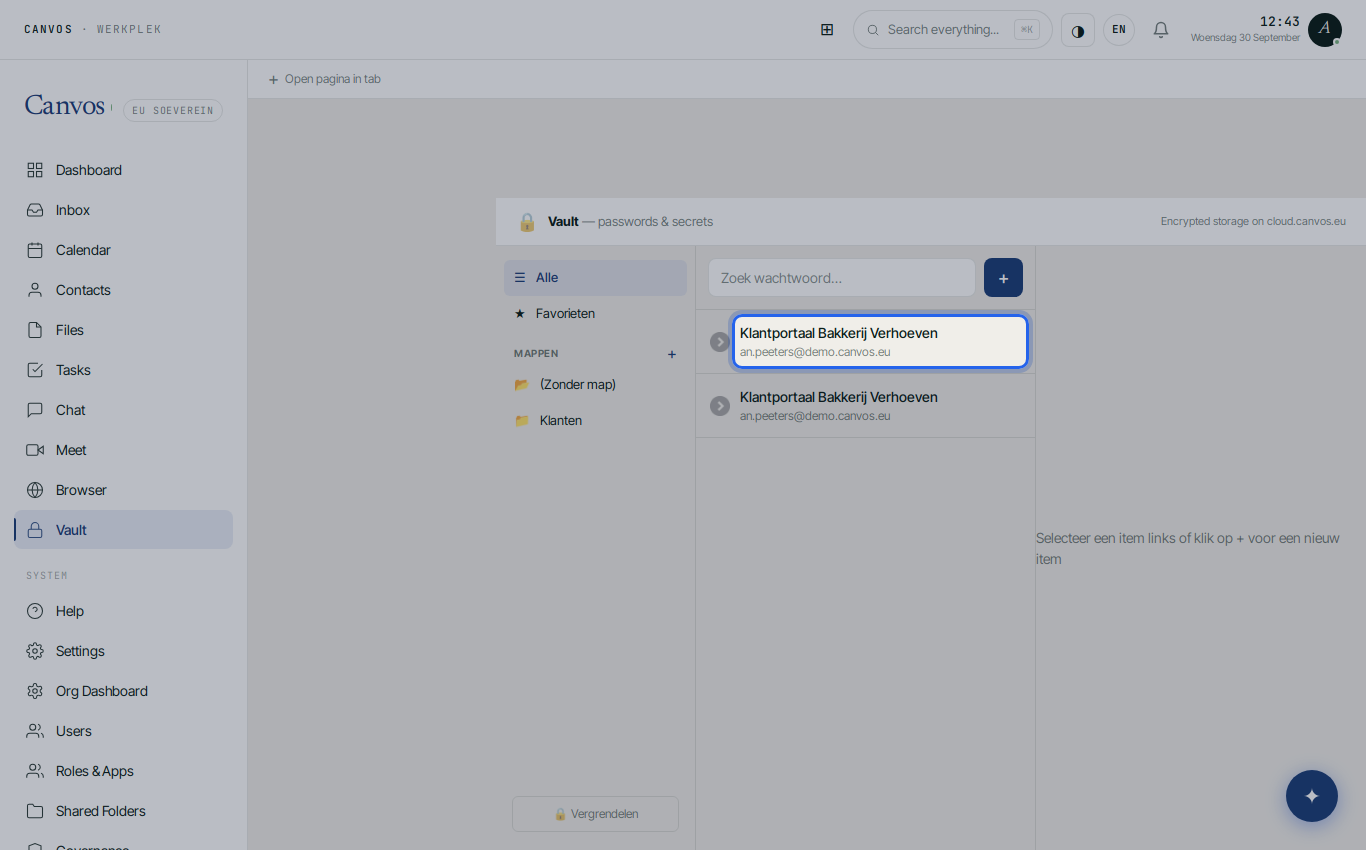
Organise with folders
Click + next to Mappen (folders), type a name such as Klanten and press Enter. Assign items to a folder through the Map field in the item. That keeps suppliers, clients and internal systems apart.
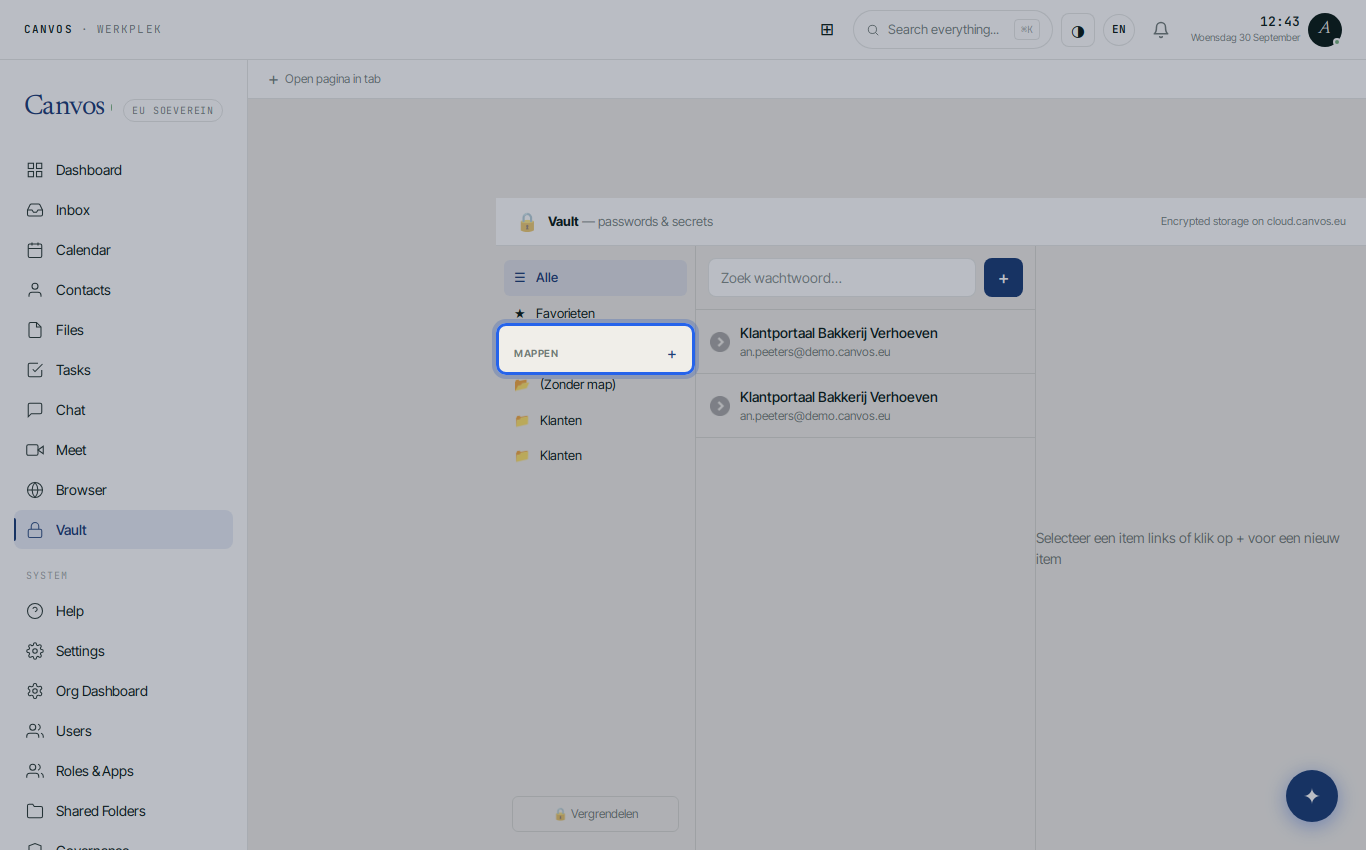
Lock when you leave
Click Vergrendelen (lock) when you leave your desk. If you do not, the vault locks itself after 15 minutes without activity. Next time you confirm with your password again.
FAQFrequently asked questions
Can I share passwords with colleagues?
Every user has their own vault. For shared team logins use the vault of a shared account or ask your administrator about the options for team vaults.
What if I forget my Canvos password?
Your administrator can reset your Canvos password. The vault is encrypted; therefore also keep important passwords in your organisation's notes or a second vault, according to your company policy.
How strong is a generated password?
The generator creates long passwords with letters, digits and symbols. You do not have to remember them: you copy them from the vault when you need them.
Does the vault also work in the private browser?
Yes. The Canvos private browser has a vault button that fills in username and password from your vault without typing them.