Sovereignty also means: your data is not only on your own server, you can always get it back too, yourself, without a ticket to a vendor. Canvos backs up everything that matters per organisation, encrypts it with a key you choose, and keeps it according to periods you set. In this guide you enable automatic backup, choose what is included, set the key and start a first backup by hand. Note: the administration screens are currently shown in Dutch; the captions translate every step.
Step by stepFive steps
1. Open Backup 2. Enable automatic backup and choose what is included 3. Retention and encryption key 4. Start a manual backup 5. History and restore
Open Backup
As administrator go to Organisatiebeheer (organisation management) and choose Backup. At the top is the configuration for automatic backups, at the bottom the manual backup and the history.
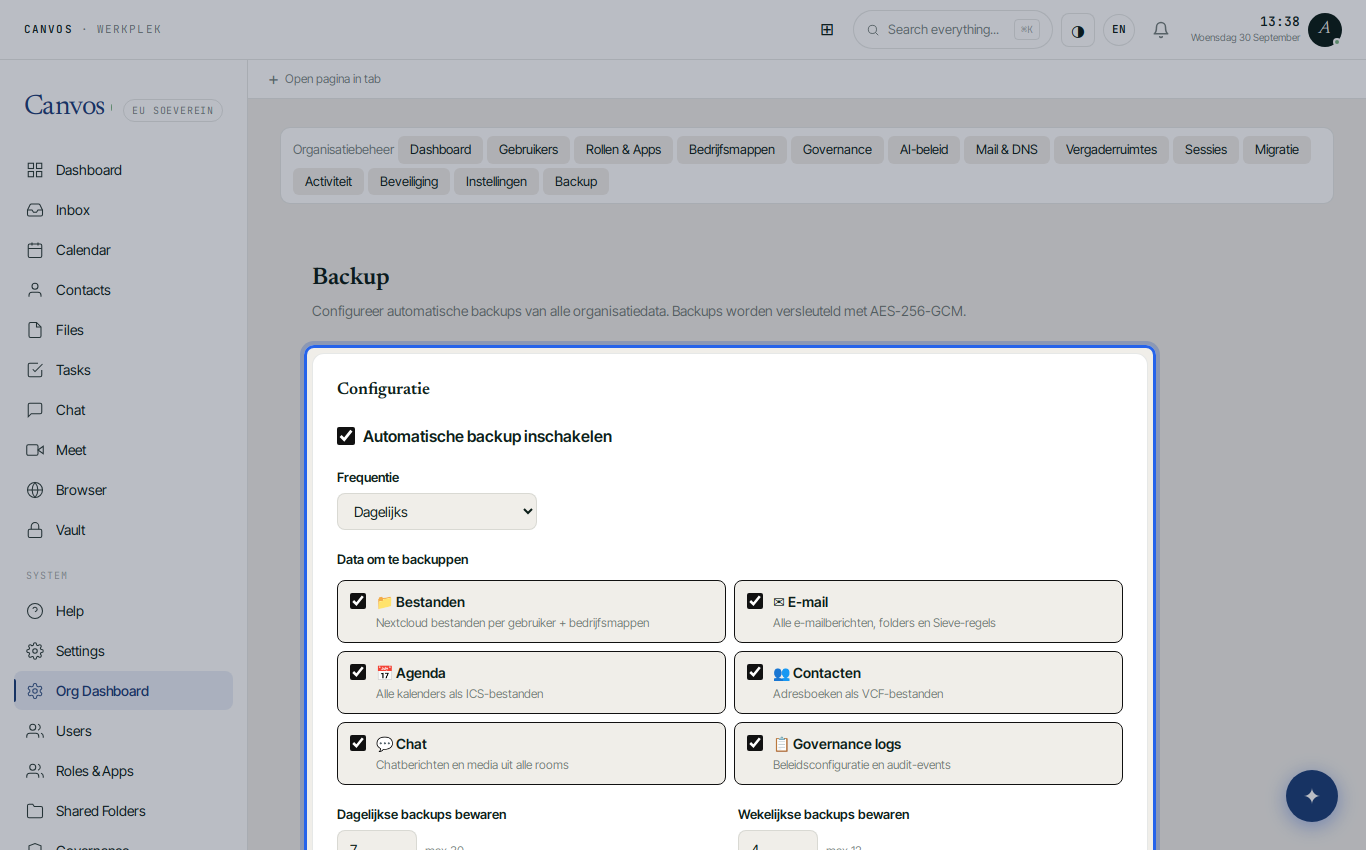
Enable automatic backup and choose what is included
Switch on Automatische backup inschakelen (enable automatic backup) and choose the frequency: daily, weekly or monthly. Tick what the backup must contain: files (including company folders), email (with folders and rules), calendars, address books, chat and the governance logs with the policy and the evidence chain. For a complete backup tick everything.
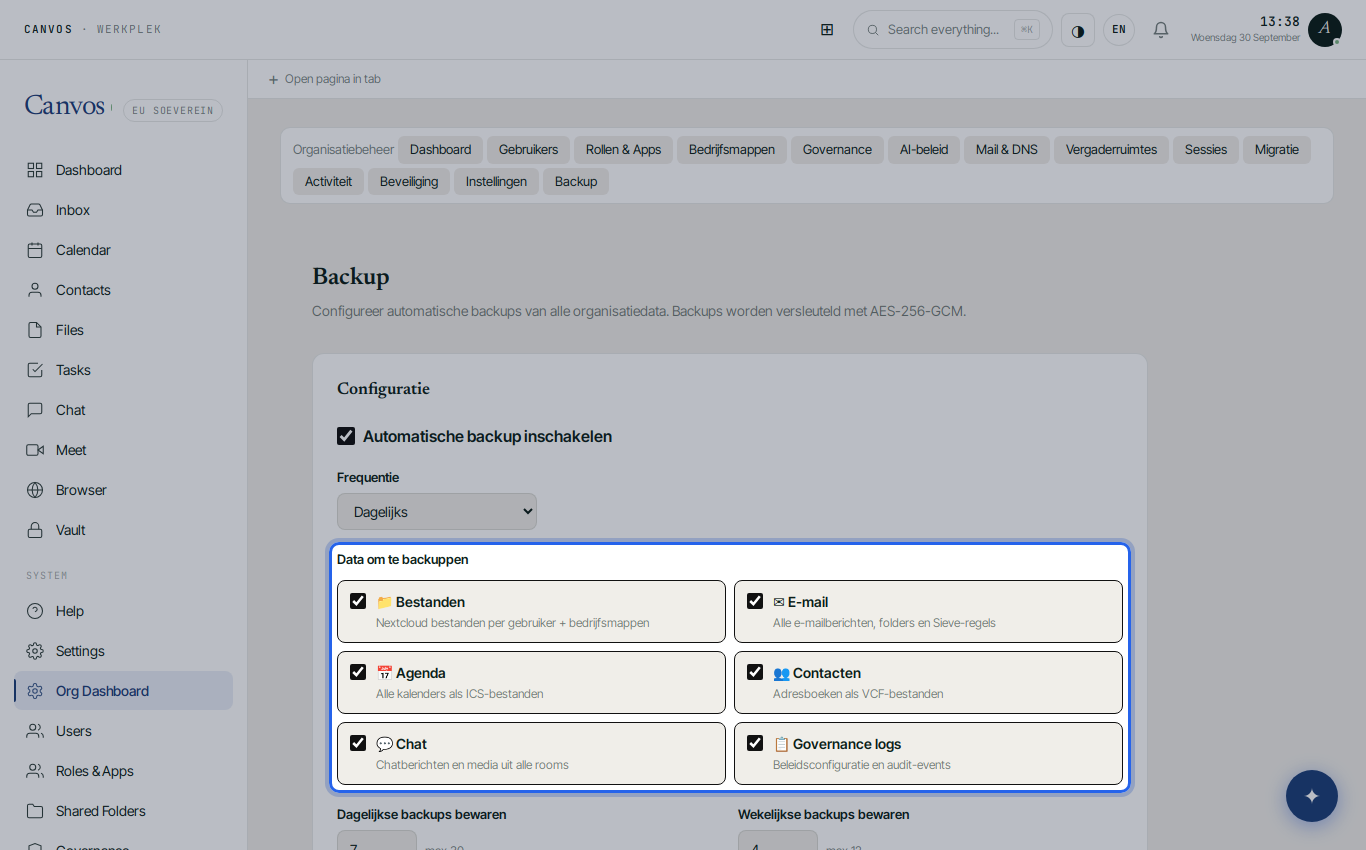
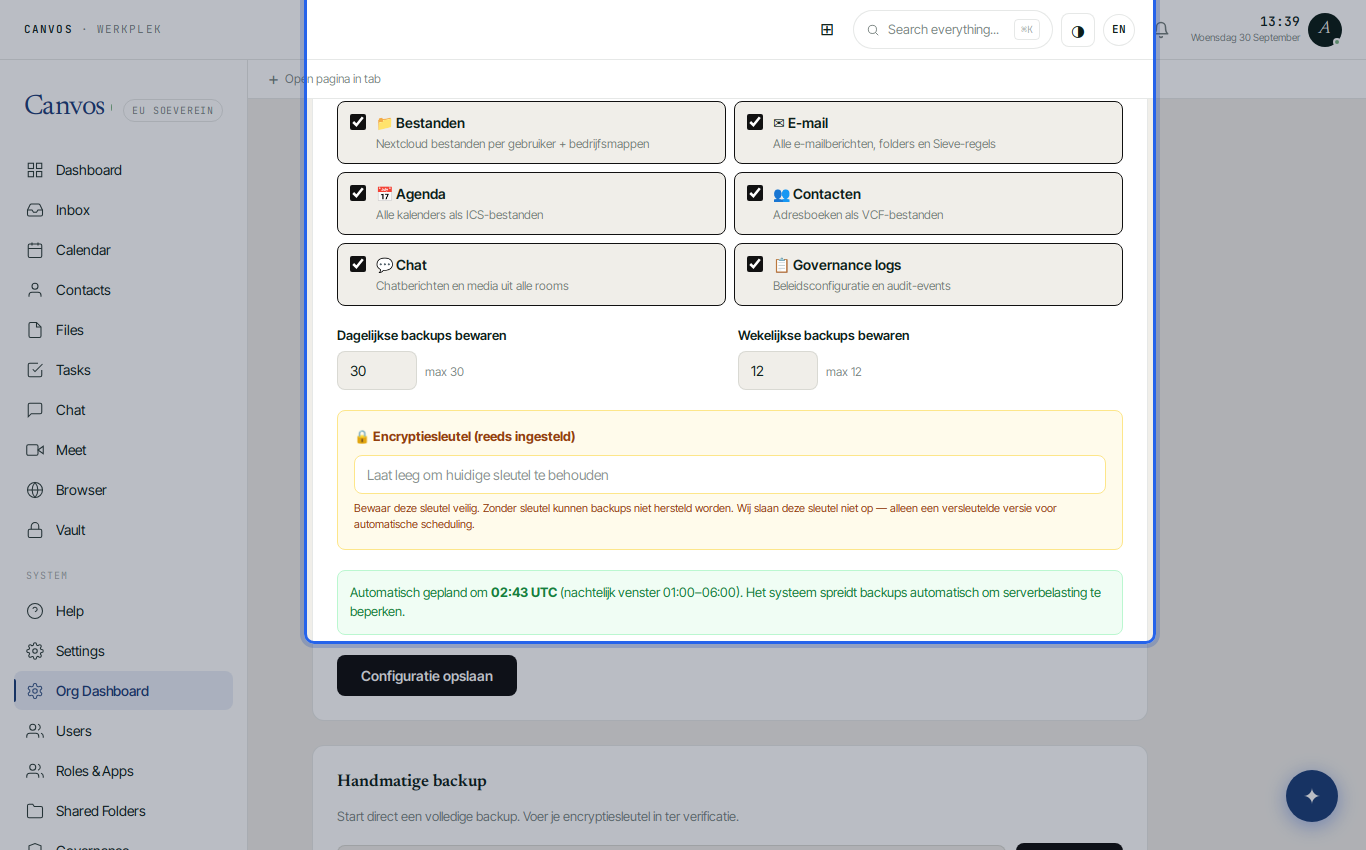
Retention and encryption key
Choose how many daily and weekly backups you keep, for example 30 and 12. Then choose an encryption key of at least 16 characters. Canvos does not store that key in readable form: without the key a backup cannot be restored. So keep it safe, for example in the vault, and click Configuratie opslaan (save configuration).
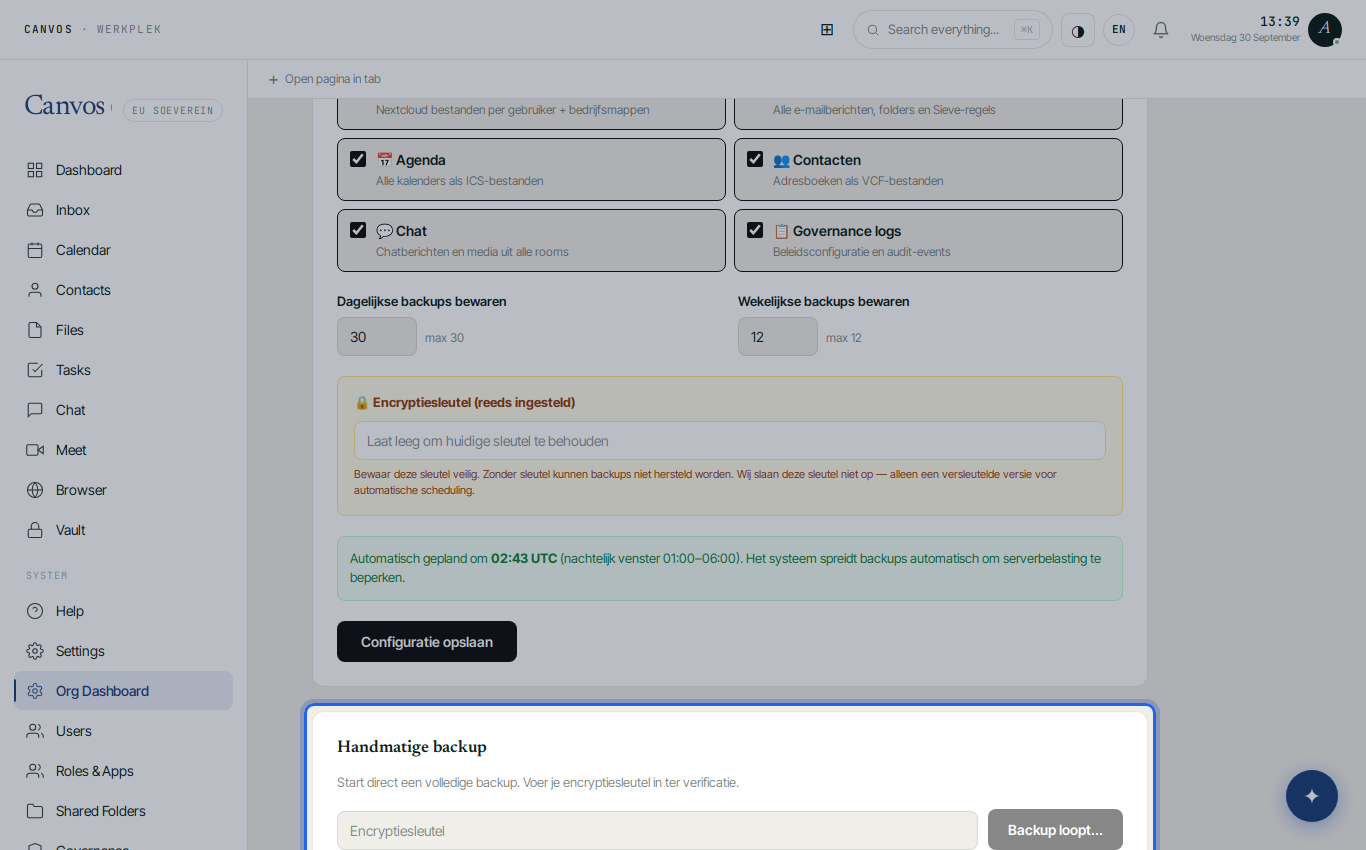
Start a manual backup
Under Handmatige backup (manual backup) enter your key for verification and click Nu starten (start now). Canvos immediately creates a complete, encrypted backup of the organisation. Do this after setting up, so you know everything works, and before a major change.
History and restore
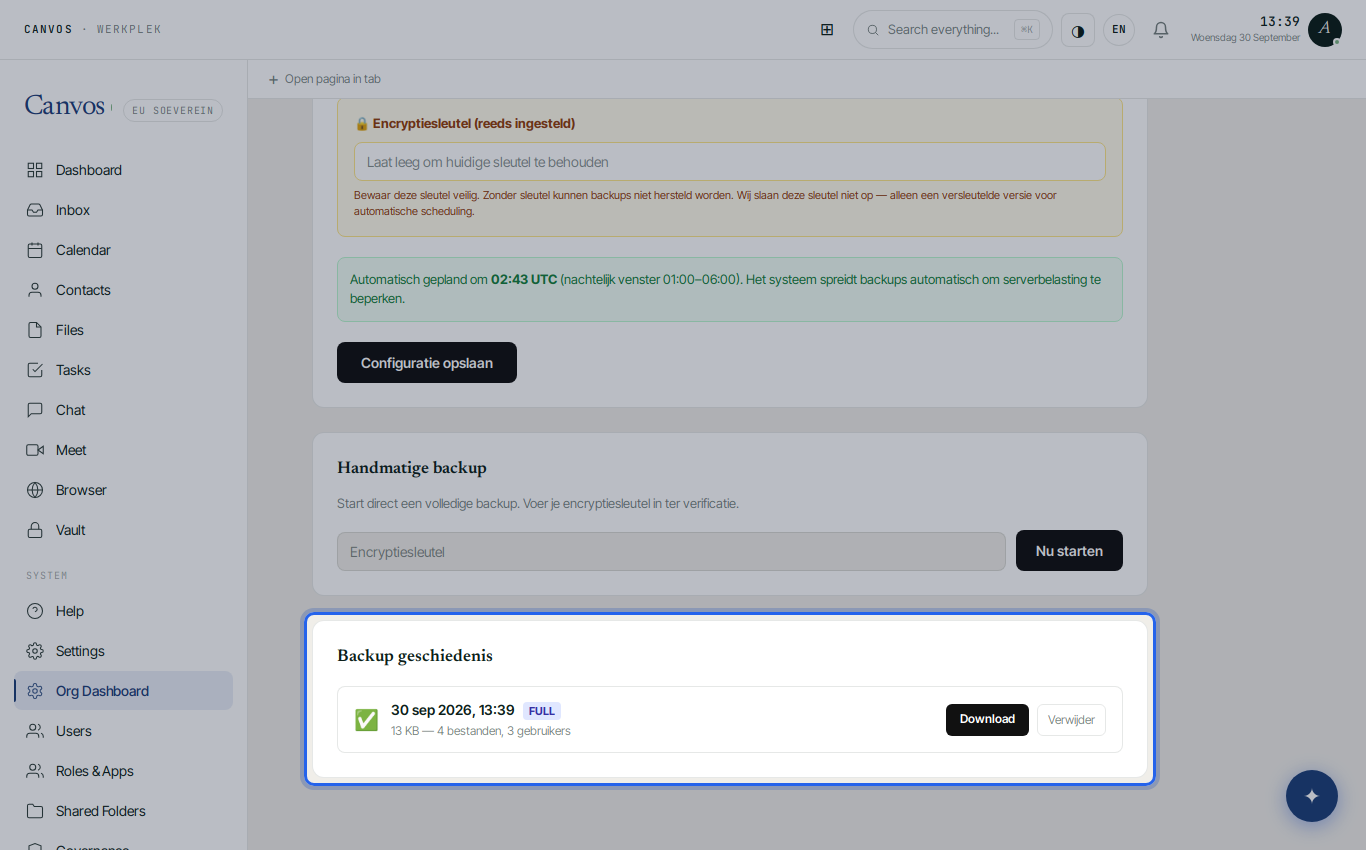
Under Backup geschiedenis (backup history) every run is listed with time, size and status. From here you restore a backup when needed: with your key, yourself, without a vendor's involvement. Test that at least once a year; a backup you have never restored is an assumption.
FAQFrequently asked questions
Where are the backups stored?
On the Canvos infrastructure in Europe, separated from the live environment and encrypted with your key. Ask your administrator about the exact location and whether an extra copy at a second location is configured.
What if I lose the encryption key?
Then the backups made with that key can no longer be restored; that is exactly what encryption means. Keep the key in the vault and in a second safe place, and change it only deliberately.
Does this replace the retention policy?
No. Retention decides how long data stays in the live environment; backup protects against loss. A backup may contain data that retention has already removed, within the retention period of the backups themselves.
How long does a backup take?
That depends on the amount of data. The first backup is the largest; after that it goes faster. The history shows duration and size per run.