The fear of switching is usually bigger than the switch itself. Canvos has a built-in migration wizard that talks directly to Microsoft Graph: it reads your users, mailboxes, calendars, contacts and files through an app registration in Entra ID. Nobody has to hand over a password, and your people keep working in Microsoft 365 while Canvos syncs in the background. In this guide you walk through the four steps of the wizard as an administrator sees them. The screens show the wizard without a connected tenant; with your own credentials your users and sites appear. Note: the wizard is currently shown in Dutch; the captions translate every step.
Step by stepFour steps
1. Connection: app registration in Entra ID 2. Fetch and map users 3. Options: what moves 4. Overview and start, with continuous sync
Connection: app registration in Entra ID
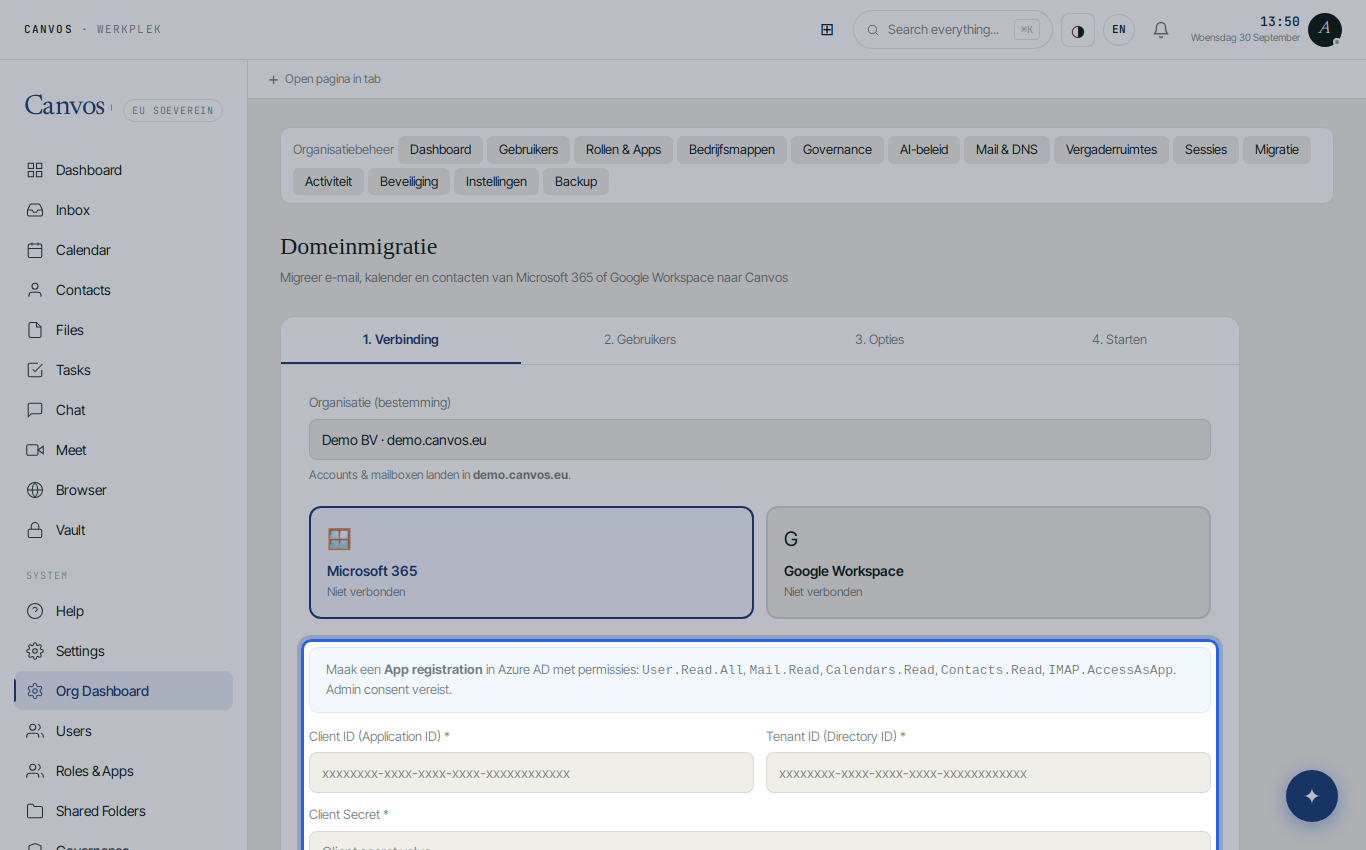
Go to Organisatiebeheer (organisation management), Migratie, and choose Microsoft 365. In Entra ID (Azure AD) you create an app registration with the permissions User.Read.All, Mail.Read, Calendars.Read, Contacts.Read and IMAP.AccessAsApp, and paste Client ID, Tenant ID and Client Secret into the wizard. Click Verbinden met Microsoft 365 (connect). That is the only technical step, and it takes ten minutes. The wizard also shows which Canvos organisation is the destination.
Fetch and map users
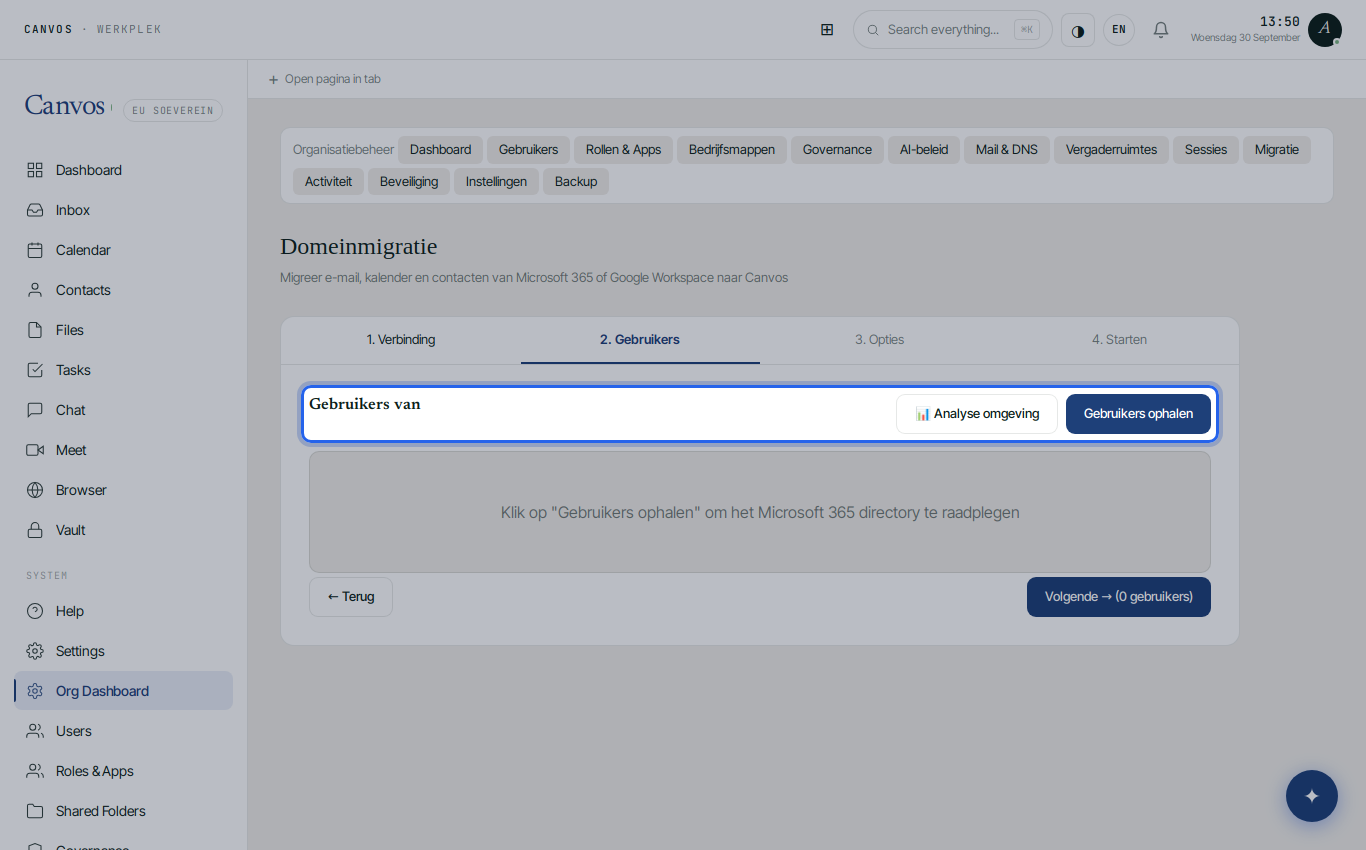
Click Gebruikers ophalen (fetch users). Canvos reads your tenant's directory and shows every user with a proposed Canvos username, which you can adjust per person. Filter who moves: all, active or licensed users, and tick per person. An assessment shows in advance how much mail and how many files each person has.
Options: what moves
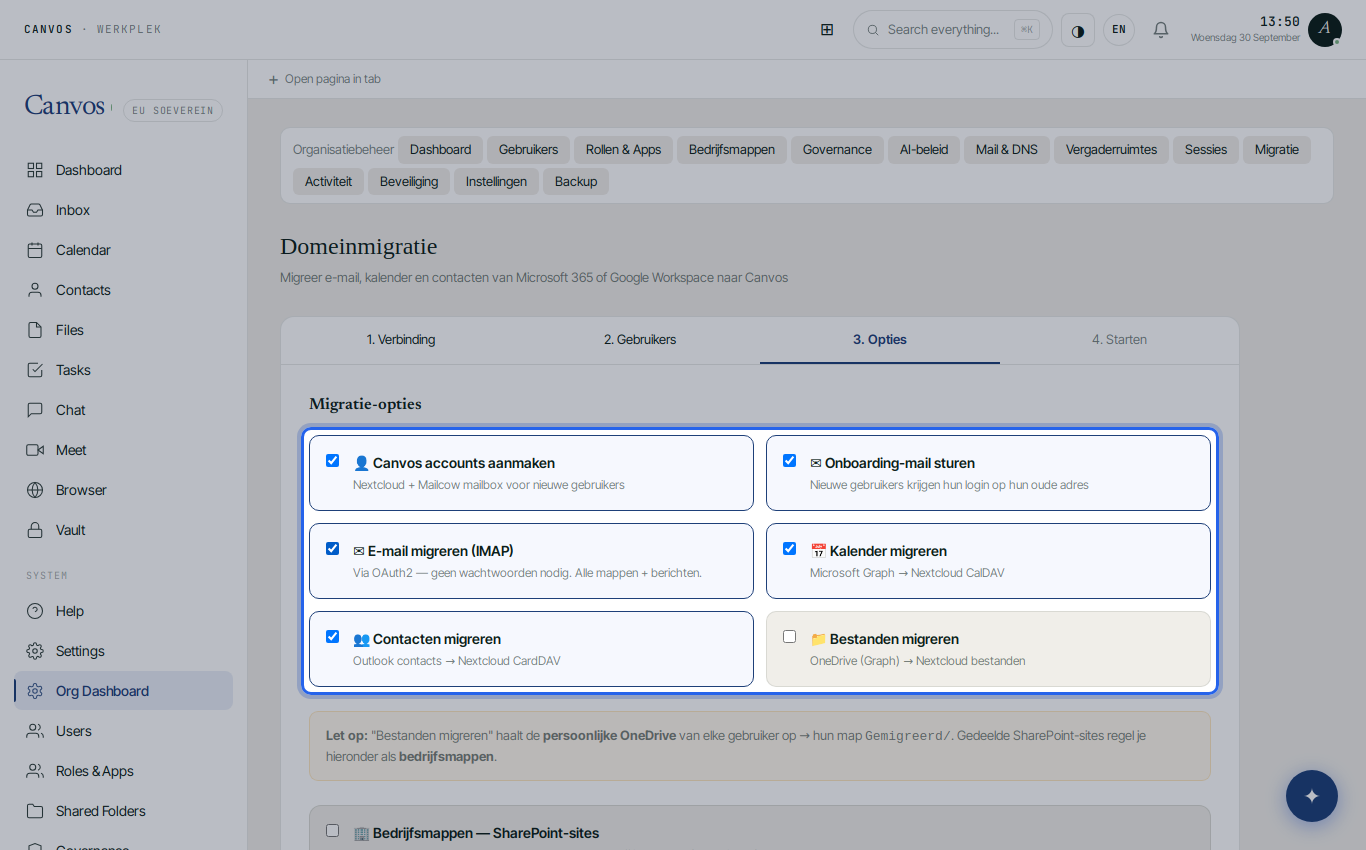
Choose what the wizard does: create Canvos accounts and mailboxes, send an onboarding mail to the old address, migrate email over IMAP with OAuth2 (all folders and messages), calendars via Microsoft Graph to the Canvos calendar, contacts to the address book, and each user's personal OneDrive to the folder Gemigreerd. Shared SharePoint sites are fetched separately and linked as company folders to a group.
Overview and start, with continuous sync
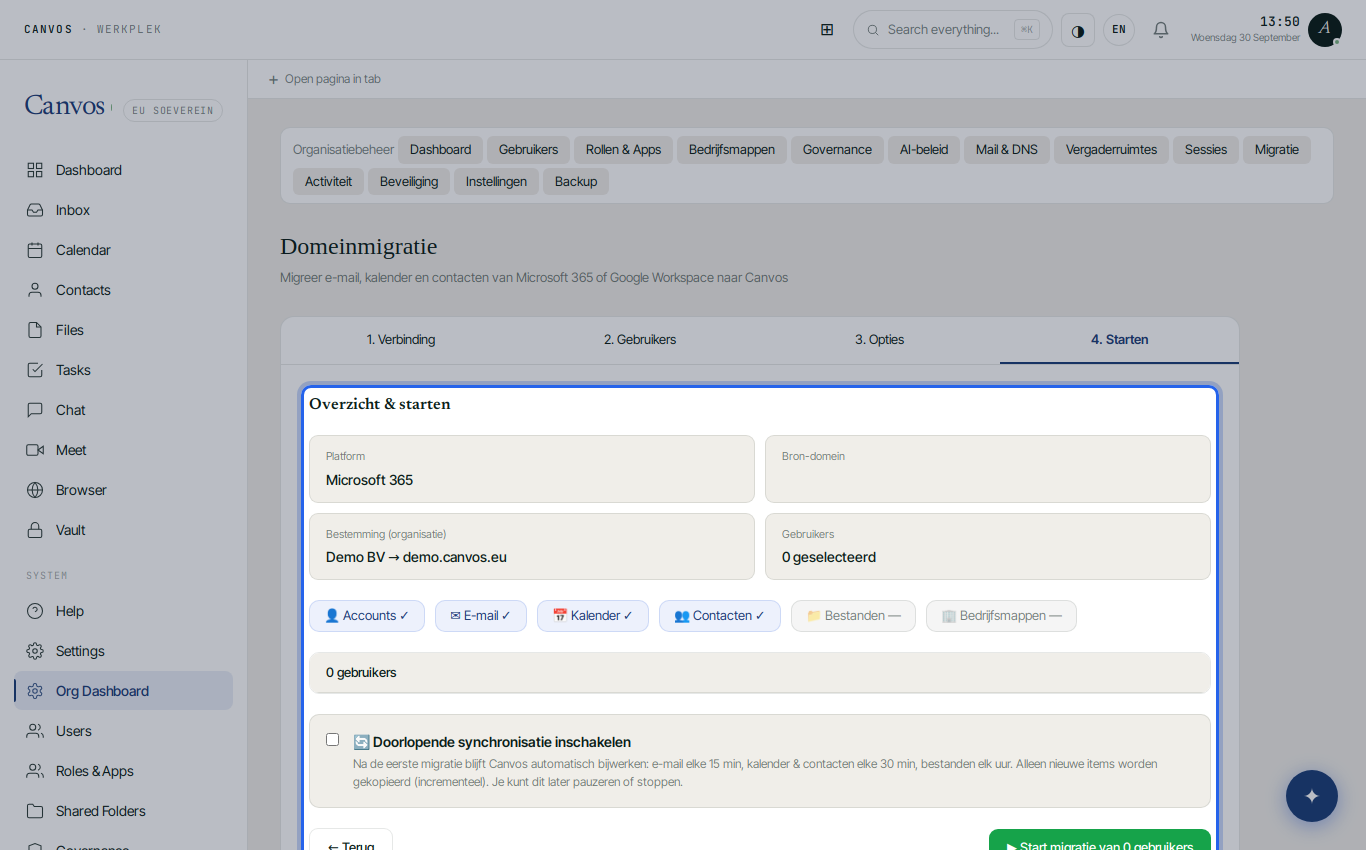
The overview shows platform, source domain, destination and the number of users. Switch on Doorlopende synchronisatie (continuous sync): Canvos then periodically fetches new mail and changes, so your people keep working in Microsoft 365 until switch-over day. Click start; progress is shown per task under Migratietaken. On switch-over day you point the MX records to Canvos and stop the sync.
FAQFrequently asked questions
Is there downtime for users?
No. The migration runs in the background while everyone keeps working in Microsoft 365. Only when you repoint the MX records does new mail arrive in Canvos. Plan that for a quiet moment, for example a Friday evening.
Does the full mail history move?
Yes, all folders and messages over IMAP with OAuth2, attachments included. Calendars and contacts come through Microsoft Graph. Rules and signatures are set up again in Canvos; see the mail guide.
What about Teams and SharePoint?
SharePoint libraries become company folders in Canvos, shared with a group. Teams chats do not migrate; most organisations start fresh in Canvos Chat and keep an export of Teams for their retention obligations.
How long does the migration take?
That depends on the amount of data and how fast Microsoft delivers it. Count on one night for an office of ten to twenty people; larger mailboxes keep going with continuous sync.
What do I need in Entra ID?
Rights to create an app registration with application permissions and to grant admin consent. Your IT partner can do this; the wizard shows exactly which permissions are required.