In many companies the real coordination happens in WhatsApp groups: fast, familiar, and a problem. Client names, photos of documents and agreements sit on private phones and on servers outside Europe, and whoever leaves the company takes the whole history along. Canvos Chat does what that group does, but on your own workplace: messages stay with the company, fall under your retention, and a colleague who leaves loses their access, not you your history. In this guide you send a direct message, create a channel for the team and see how to start a meeting from a conversation.
Step by stepFive steps
1. Open Chat and click + 2. A direct message 3. The reply arrives 4. A channel for the team 5. Meet from the conversation
Open Chat and click +
Click Chat in the sidebar and then the + at the top of the conversation list. You choose between a Direct message to one colleague and a Channel for a group.
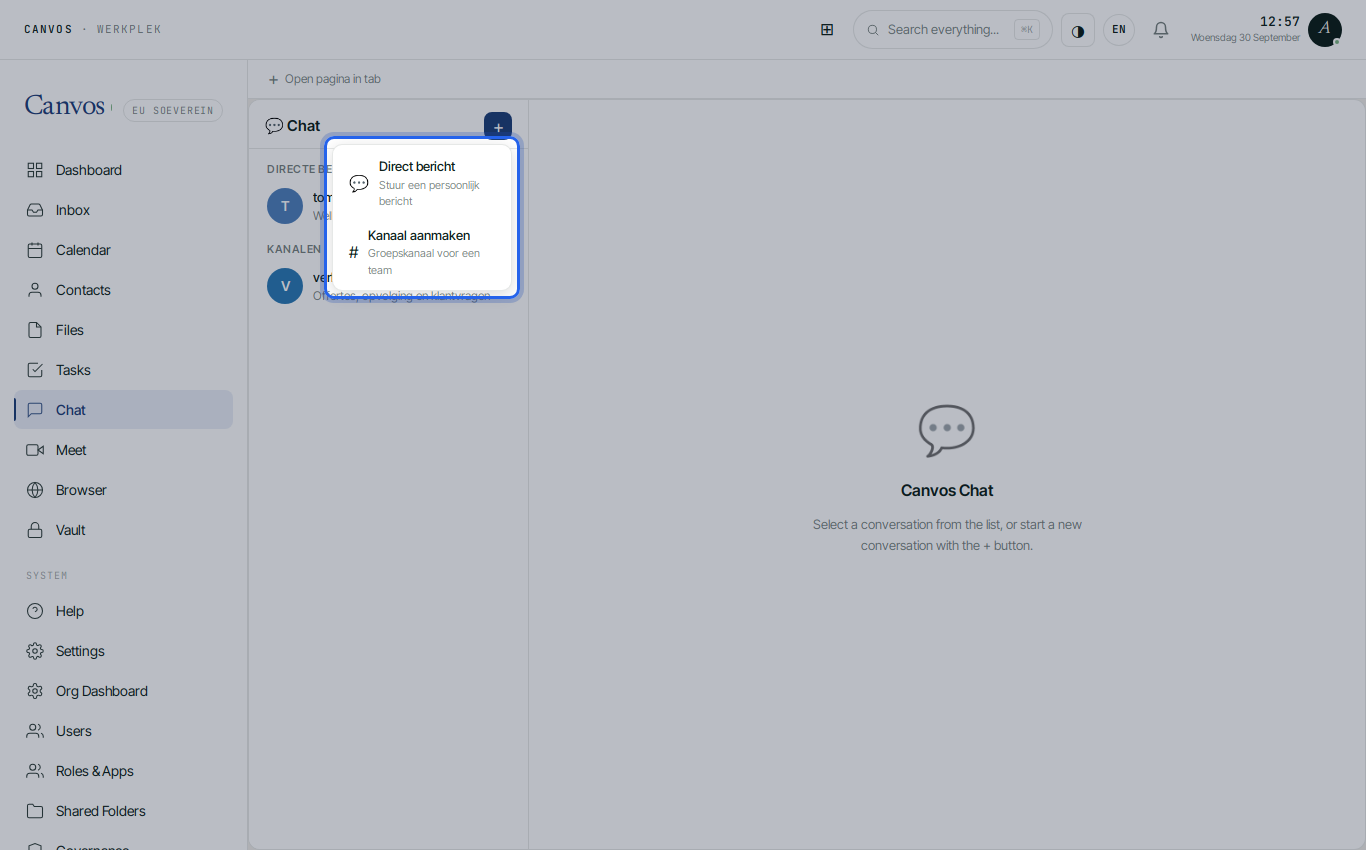
A direct message
Choose Direct bericht (direct message), type a colleague's name and select them. The conversation opens; type your message and press Enter. No phone number, no private device, no app reading your contacts.
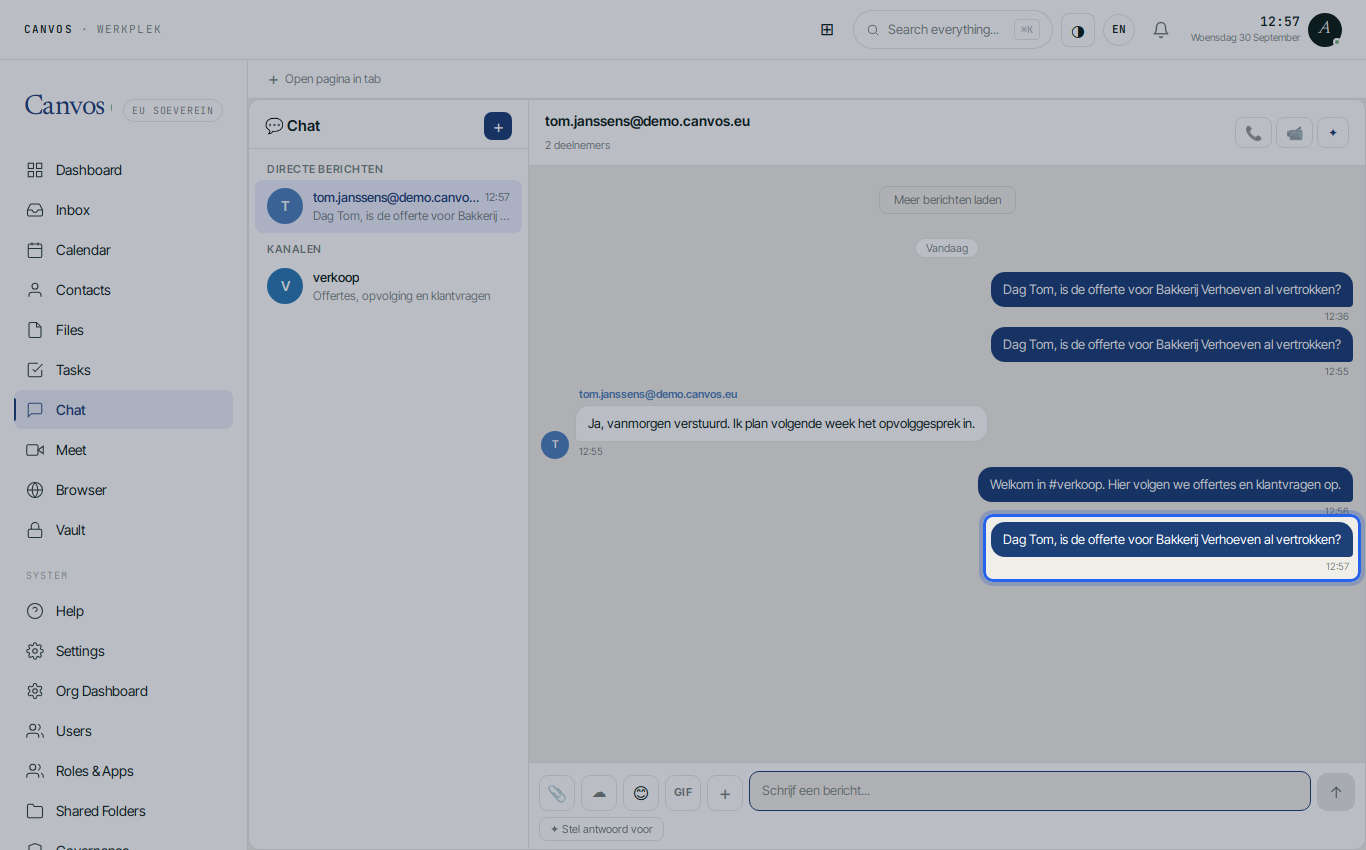
The reply arrives
Tom replies from his workplace or from the Canvos app on his phone; it appears at once. Attachments, links to files in Canvos and emoji work as you expect.
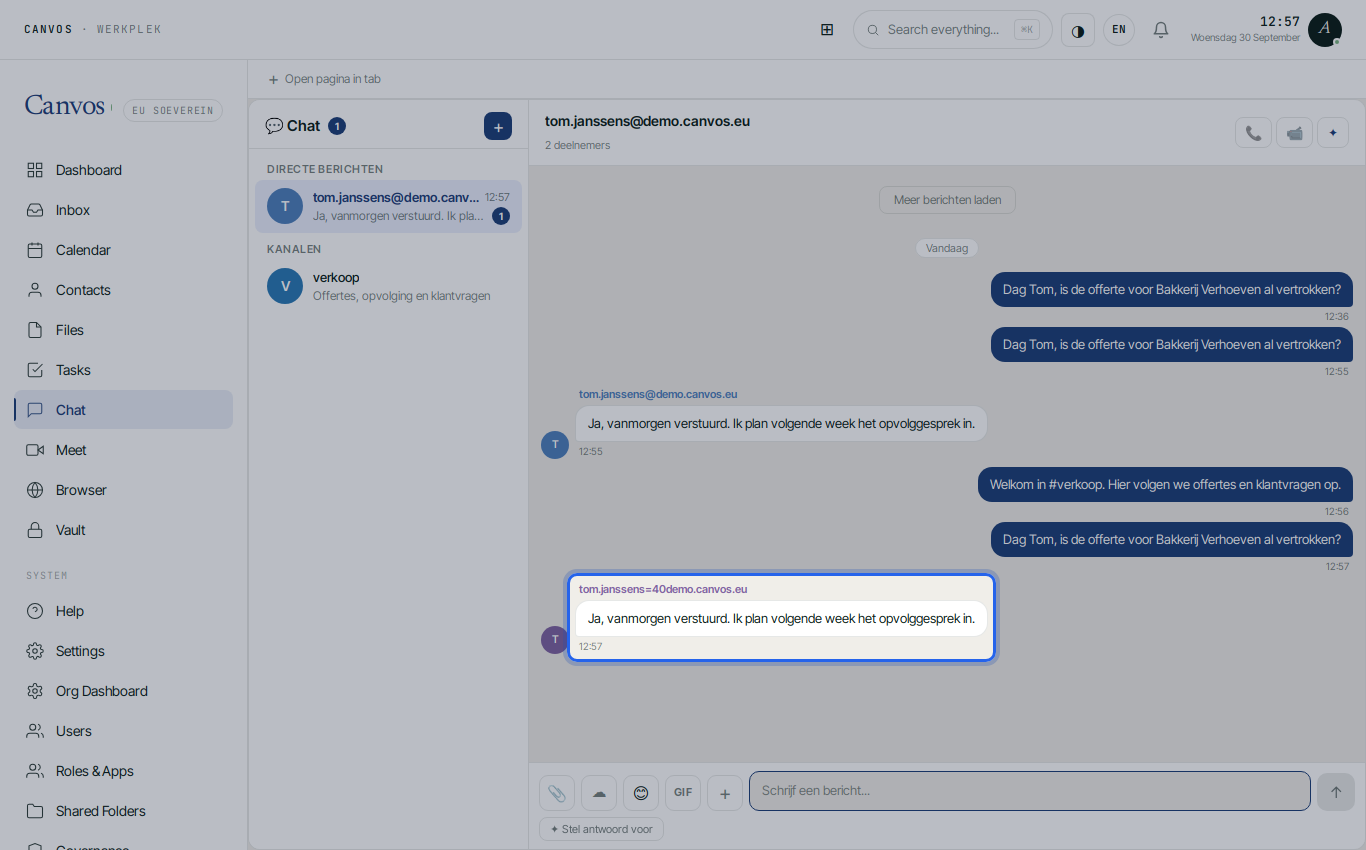
A channel for the team
Click + again and choose Kanaal aanmaken (create channel). Give a name such as verkoop (sales), a topic, and add members. A channel replaces the WhatsApp group: everyone you add sees the history, and whoever leaves the company loses access.
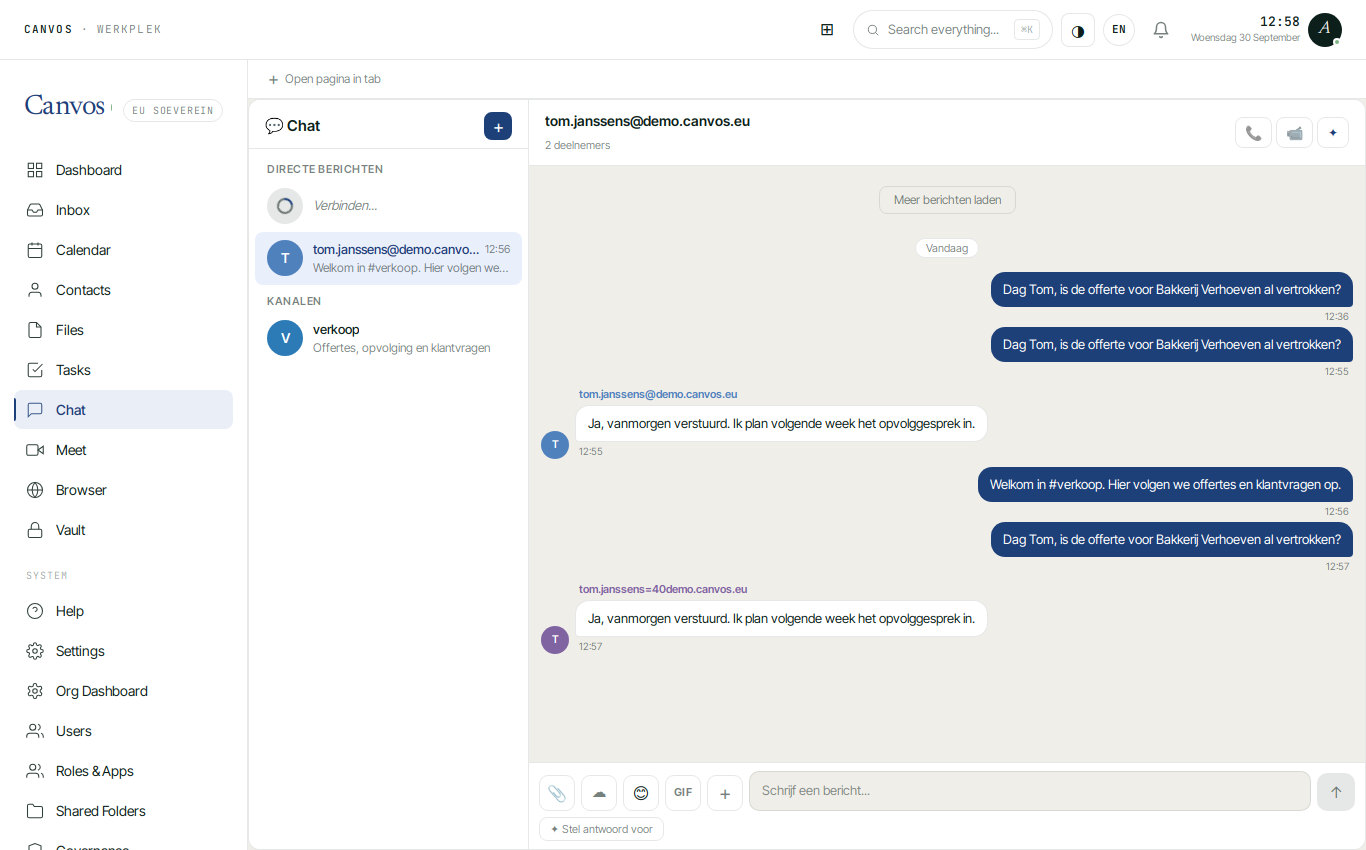
Meet from the conversation
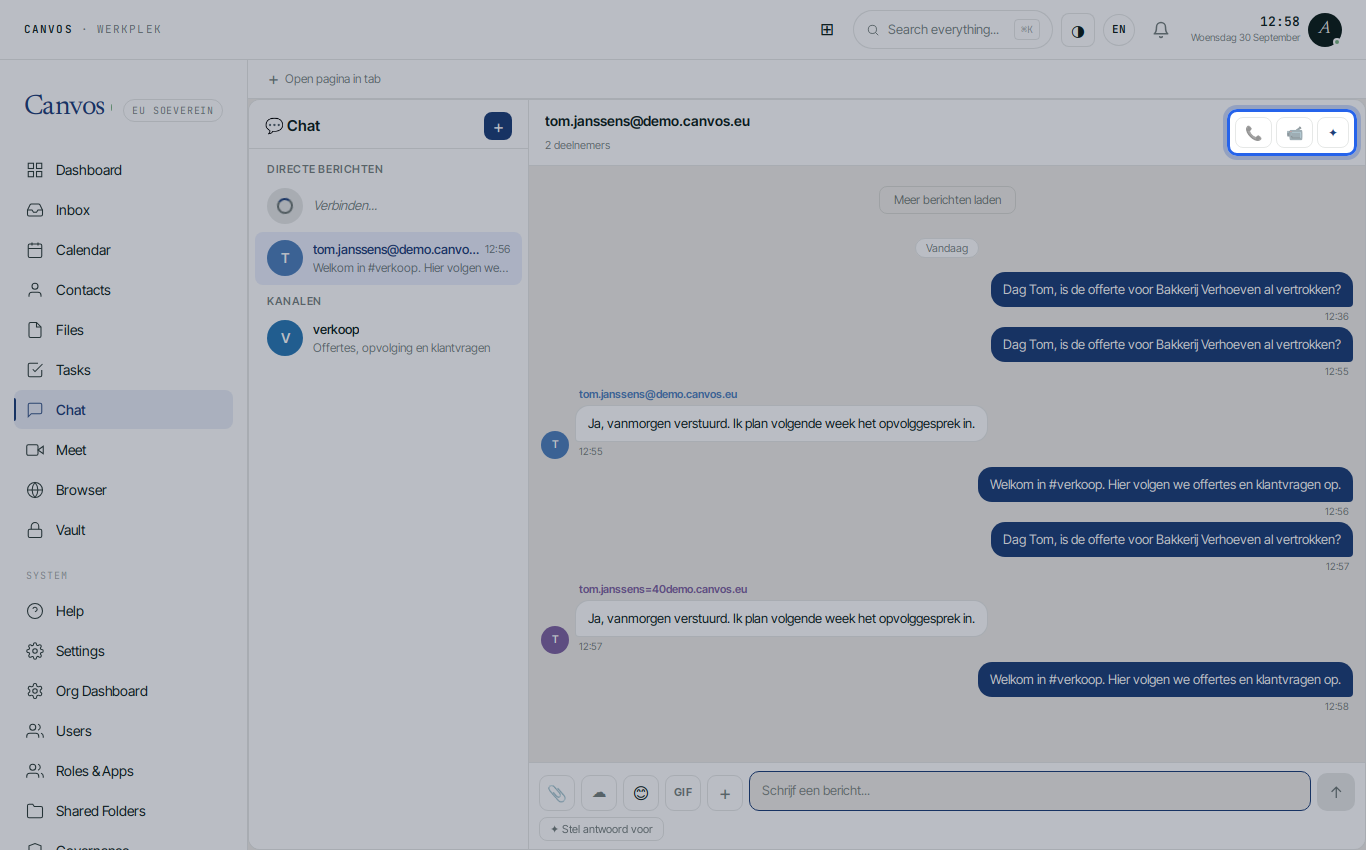
At the top of every conversation are 📹 and 📞. One click starts a video or audio meeting on meet.canvos.eu, and the link is shared in the conversation automatically. See also the guide on video meetings without an account.
FAQFrequently asked questions
Does Canvos Chat also work on my phone?
Yes, in the Canvos app and in any Matrix app (Element, for example), because Canvos Chat is built on the open Matrix protocol. You get notifications like with any chat app.
Can I chat with people outside the company?
Inside Canvos Chat you talk to colleagues of your organisation. For clients and suppliers you use email or a video meeting through a link, which requires no account.
How long are messages kept?
Your administrator decides in the Retention policy with the period for chat messages. A year is common; zero means keep forever.
Do the DLP rules also apply in chat?
Yes. A DLP rule with trigger Everything or Chat also checks what is shared in chat, for example a file containing a national register number.